Headers, watermarks and backgrounds
Number the pages, add headers and footers, Bates numbers, watermarks and backgrounds to a PDF, and update or remove them later.
Headers and footers, watermarks and backgrounds are added to many pages at once, and the editor remembers them: you can update them or take them off later in one step. They are on the Edit tab, in the Page design group.

- Header & Footer: text at the top and bottom of the pages, page numbers and Bates numbers.
- Watermark: text or a picture across the pages, such as DRAFT or CONFIDENTIAL.
- Background: a colour or a picture behind the pages.
Each of these buttons opens a menu with Add…, Update… and Remove. Update… and Remove are available when the document already has one.
Headers and footers, page numbers, Bates numbers, watermarks and backgrounds need Pro.
Number the pages
- On the Edit tab, click Header & Footer, then Page numbers.
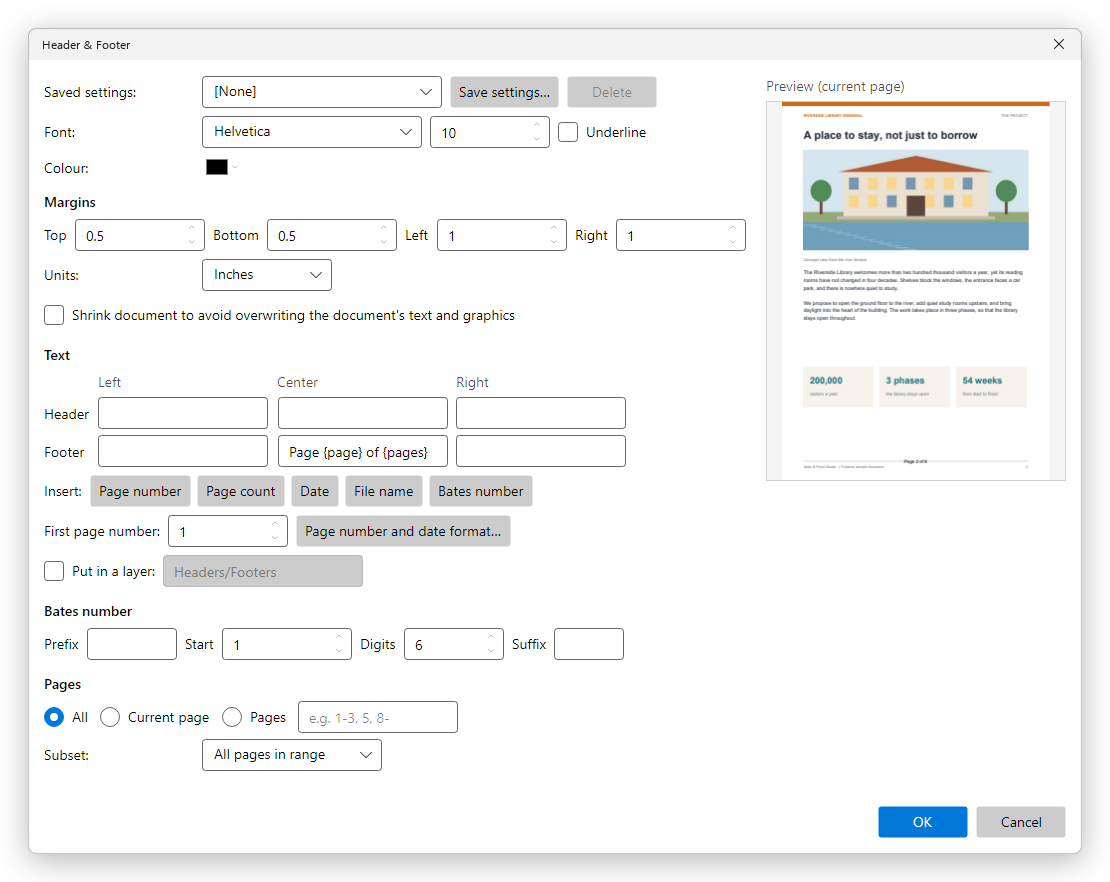
- The Header & Footer dialog opens with Page 1 of 6 (the page number and the page count) in the middle of the footer. The Preview (current page) on the right shows how it looks.
- Change the text, the font or the margins if you like, then click OK.
Add a header or footer
- On the Edit tab, click Header & Footer, then Add….
- Under Text, type in the boxes for the left, centre and right of the Header and the Footer. Leave empty the ones you do not need.
- To put the page number, the page count, the date or the file name in the text, click in a box, then click Page number, Page count, Date or File name. Page number and date format… chooses how they are written, and First page number where the numbering starts.
- Choose the Font, its size and Colour, and the Margins between the text and the edges of the page. Tick Shrink document to avoid overwriting the document's text and graphics if the text would cover what is on the pages.
- Under Pages, choose All, Current page, or type a range such as 2-6. Subset limits it to the even or odd pages.
- Click OK.
If the document already has a header or footer, the editor asks whether to Replace it or to Add new.
Settings you use often can be kept: click Save settings… at the top of the dialog, then choose them from Saved settings next time.
Bates numbering
Bates numbers give every page of a set of documents its own number, such as ABC000123, as in legal work.
- On the Edit tab, click Header & Footer, then Bates numbering….
- The Header & Footer dialog opens with the Bates number at the bottom right. Under Bates number, type the Prefix and Suffix, the number to Start from and how many Digits it has.
- Click OK.
To put a Bates number elsewhere, click in another box of the dialog and click Bates number.
Add a watermark
- On the Edit tab, click Watermark, then Add….
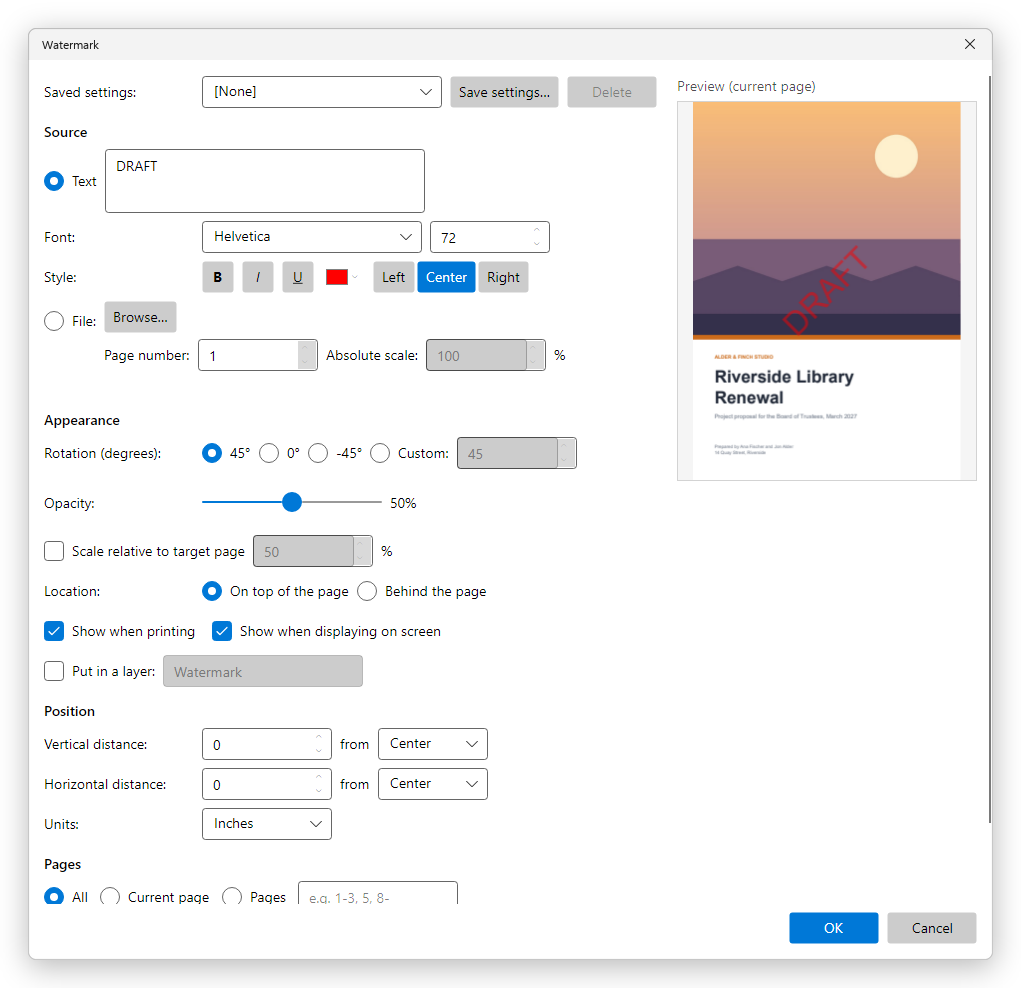
- Under Source, type the Text of the watermark, or choose File and click Browse… to use a picture or a page of a PDF.
- Choose the font, size, style and colour of the text.
- Under Appearance, choose the rotation and the Opacity, and whether the watermark goes On top of the page or Behind the page.
- Under Position, move it from the centre of the page if you like, and under Pages choose the pages it goes on.
- Click OK.
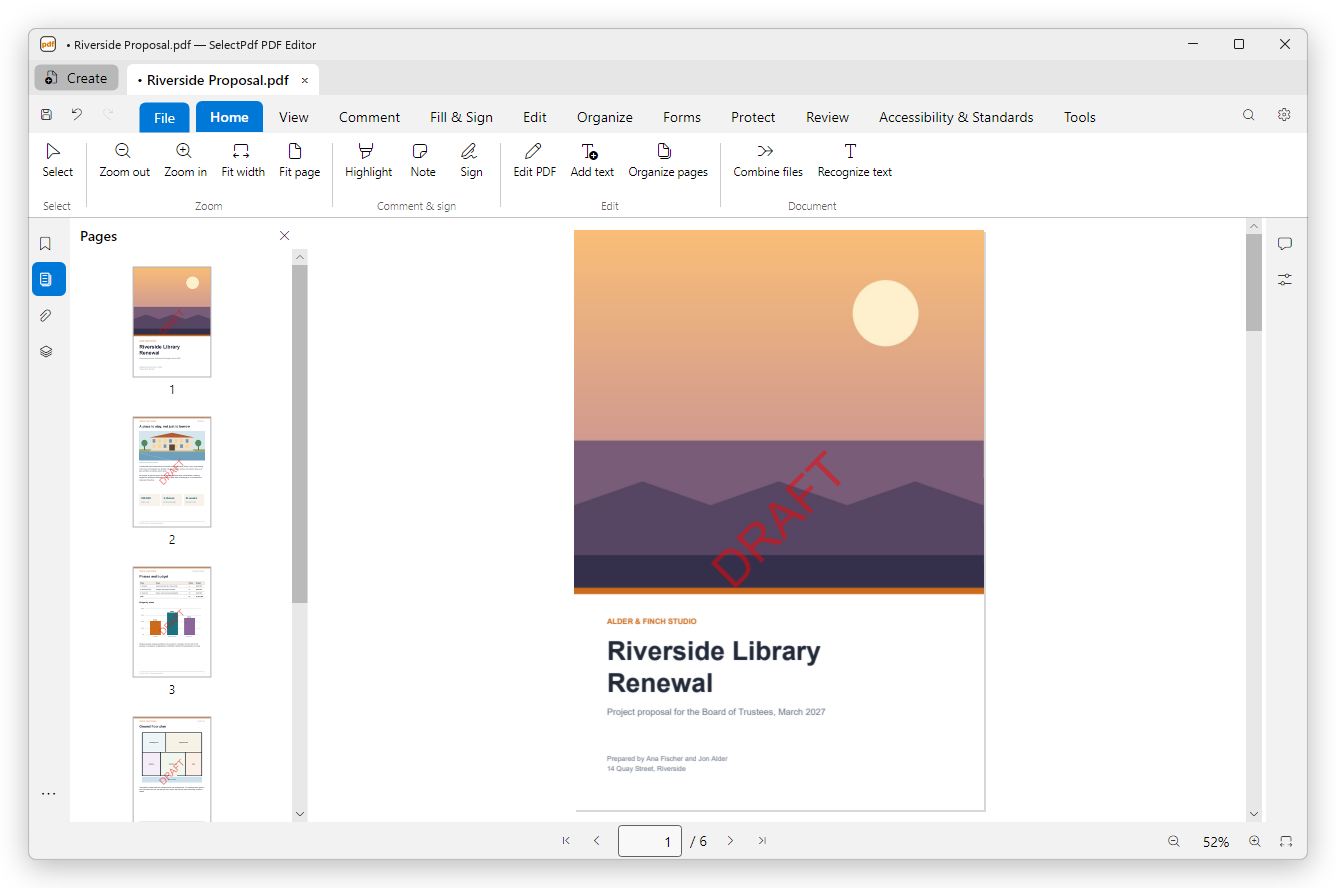
If the document already has a watermark, the editor asks whether to Replace it or to Add new on top of it. The watermark is then on every page you chose:
Show when printing and Show when displaying on screen choose where the watermark appears, so you can have one that shows only on paper. Put in a layer lets readers switch it off in the Layers panel.
Add a background
- On the Edit tab, click Background, then Add….
- Choose a Colour, or choose File and click Browse… to use a picture or a page of a PDF.
- Set its rotation, opacity and position, and the pages it goes behind.
- Click OK.
A background goes behind what is on the page, so it shows only where the page is not covered: on pages with a picture across them, choose a watermark instead.
Update or remove
- To change a header, footer, watermark or background, click its button on the Edit tab, then Update…. The dialog opens with the current settings; change them and click OK. The new one takes the place of the old one.
- To take it off every page, click its button, then Remove.
Like any change, these can be undone with Undo (Ctrl+Z). Save the document to keep them.