Links and actions
Add and change links, choose how they look and what they do (go to a page, open a web page or a file, submit a form, show layers, run a script...), and set actions that run when the document or a page opens, closes, saves or prints.
A link is an area of a page that does something when it is clicked: it goes to another page, opens a web page, runs a script... What it does is a list of actions, run in order. The same actions are used by bookmarks, by form buttons, and by the document and its pages when they open, close, save or print.
Follow a link
With Select, point at a link: the pointer becomes a hand and a tip shows where the link goes. Click to follow it.
- A link to a page of the document goes there. Previous view on the View tab (Alt+Left) takes you back.
- A link to a web page or an e-mail address asks first, in the Open Link dialog. Click Allow to open it: the other links of the same document then open without asking.
- A link that opens a file asks first. A PDF opens in a tab of the editor; other files open with the app Windows uses for them. Programs and scripts are never opened from a link.
Add a link
On the Edit tab, click Link. The links already on the page show as blue boxes, and the status bar says what to do.
Drag a box over the text or picture that should be the link.
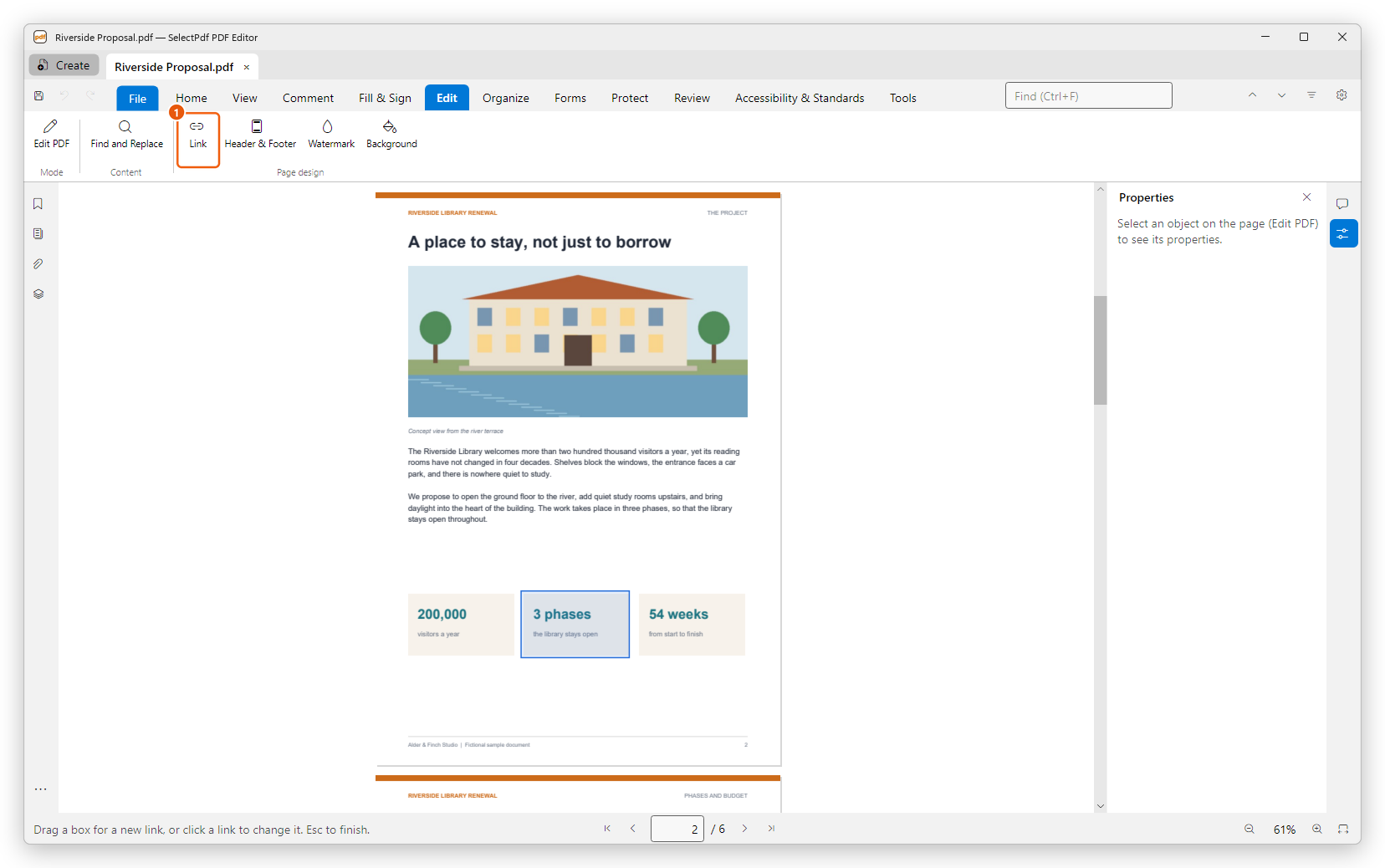
Dragging the box of a new link The Create Link dialog opens on its Actions tab. Choose what the link does under Select action and click Add….
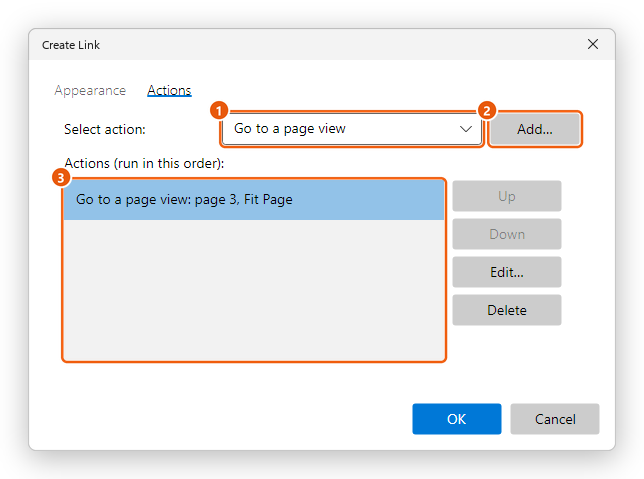
The Create Link dialog with one action - Select action: the kind of action.
- Add…: opens the action's own dialog, where you choose the page, the web address, the file...
- The actions, run in this order when the link is clicked.
Fill in the action's dialog and click OK. For Go to a page view, choose the Page and the Zoom.
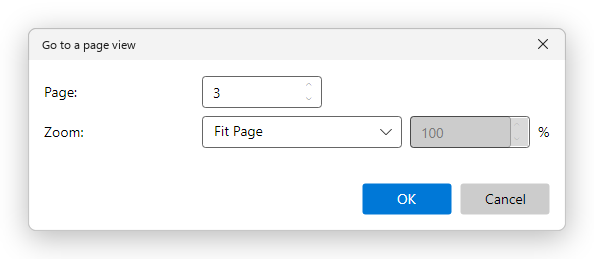
A page view: page 3, the whole page On the Appearance tab, choose how the link looks (see below), then click OK.
The tool stays on, so you can draw more links. Press Esc when you are done.
Change or remove a link
- On the Edit tab, click Link.
- Click the link. The Link Properties dialog opens, with the same two tabs.
- Change what you want and click OK, or click Remove link to take the link off the page.
On the Actions tab, select an action and click Edit… to change it (or double-click it), Up and Down to change the order, or Delete to remove it. A link needs at least one action. Actions the editor cannot change (made by another program) are listed as Other action (kept as it is) and kept.
How a link looks
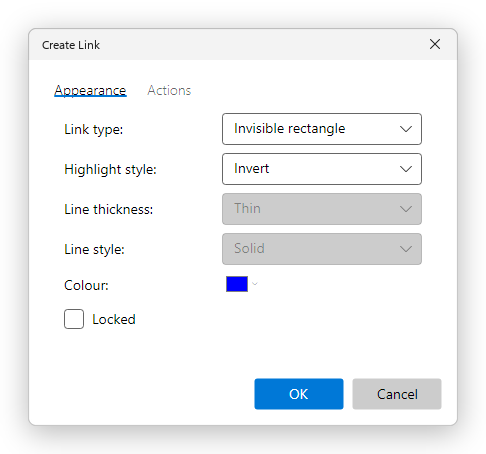
- Link type: Visible rectangle draws a frame around the link; Invisible rectangle shows nothing (the usual choice for links over text or pictures).
- Highlight style: what readers see while they click it: None, Invert (the colours of the area are inverted), Outline or Inset (the area looks pressed).
- Line thickness (Thin, Medium, Thick), Line style (Solid, Dashed, Underline) and Colour: the frame of a visible rectangle.
- Locked: nothing of the link can be changed until you clear it again.
The actions
| Action | What it does | What you choose |
|---|---|---|
| Go to a page view | Shows a page of this document. | The Page, and the Zoom: Fit Page, Fit Width, Fit Height, Fit Visible, Inherit Zoom (the reader's own zoom) or a percentage. |
| Go to a named destination | Goes to a place named in the document. The link still works when pages are added or moved before it. | One of the document's named destinations. |
| Open a web link | Opens a web page, or a new e-mail with a mailto: address. | The Web address (URL). An address without https:// gets it. |
| Open a file | Opens another file. | The file (Browse…). A file in the document's folder, or under it, is kept as a path relative to the document, so the two can move together. For a PDF, also the Page it opens at. Open in a new window is for readers that open files in windows: the editor opens a PDF in a tab. |
| Reset a form | Clears form fields back to their default values. | All fields, Only these fields, or All fields except these. |
| Submit a form | Sends the form's data to a web address (or by e-mail, with a mailto: address). | Send to this address (URL), the Export format (FDF (form data), HTML (as a web form), XFDF (form data as XML) or PDF (the whole document)), Include fields with no value, and the fields. |
| Show/hide a field | Shows or hides form fields. | Hide or Show, and the fields. |
| Run a JavaScript | Runs a script. | The script: see JavaScript. |
| Go to another page | Moves through the document. | Next page, Previous page, First page or Last page. |
| Set layer visibility | Shows, hides or toggles layers. | For each layer: Leave as is, Show, Hide or Toggle. |
When a form is submitted, the editor asks before sending it, and does not send a form whose required fields are empty. See Fill in a form.
Actions of the document and of its pages
Besides links, a document can run actions on its own:
- On the Tools tab, in the Automate group, click JavaScript.
- Choose Document Actions… for the whole document, or Page Actions… for the page shown now.
- Choose When the actions run, then add them as for a link.
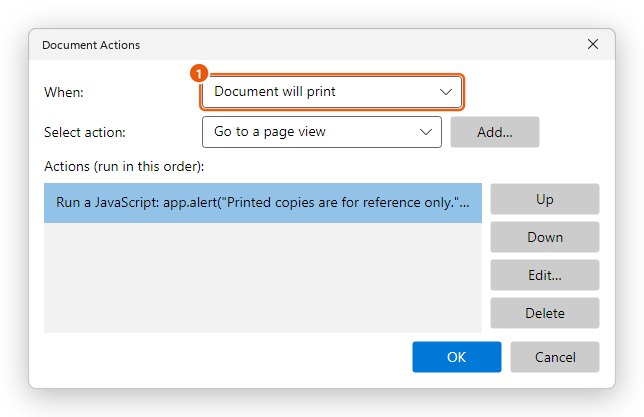
- Document actions run just before the document closes (Document will close; also when you close its tab while another document is shown, which then comes to the front for them, and when you close the editor), before and after it is saved (Document will save, Document did save), and before and after it is printed (Document will print, Document did print).
- Page actions run when the page is shown (Page open) or left (Page close).
Click OK to keep the actions of every When choice at once. Document JavaScripts…, in the same menu, holds the scripts that run when the document opens: see JavaScript.
Following links is free. Adding and changing links needs Pro, and so do Document Actions…, Page Actions… and Document JavaScripts….
Save the document (Ctrl+S) to keep its links and actions.