Sign a PDF
Add your signature or initials to a PDF by typing your name, drawing it or using a picture of it, then place, resize and save it.
Sign a letter, a contract or a form with your own signature: typed in a handwriting style, drawn with the mouse or a pen, or taken from a picture of your signature on paper. Signing this way is free.
This signature is a picture of your signature, placed on the page. It shows who signed, but it does not protect the document: anyone could copy it, and the document can still be changed after it. When the signature must prove who signed and that nothing changed since, sign with a certificate instead. See Digital signatures.
Create your signature
- Click the Fill & Sign tab, then Sign. (Sign is on the Home tab too.)
- Click Add signature.
- Make your signature in one of three ways:
- Type: type your name, then click the handwriting style you like.
- Draw: draw your signature in the box with the mouse or a pen. Clear starts again.
- Image: click Choose image and pick a picture of your signature (PNG, JPEG, BMP or GIF). The white paper around it is removed, so only the ink shows.
- Choose the ink: black, blue, red, or any other colour with the last button.
- Click Done.
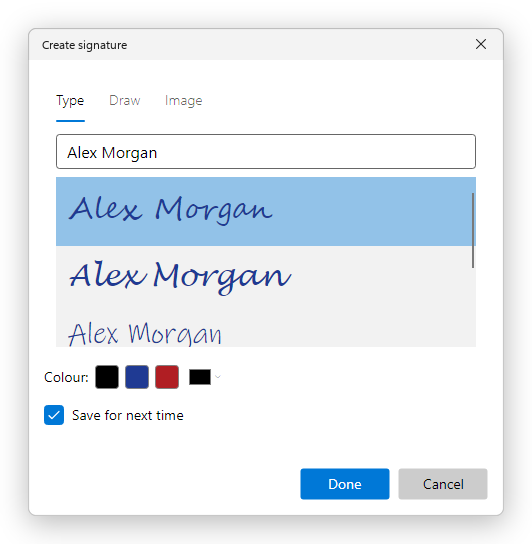
With Save for next time ticked, the editor keeps your signature on this computer, so you make it only once.
Place your signature
After Done, click the page where the signature goes. Press Esc to cancel.
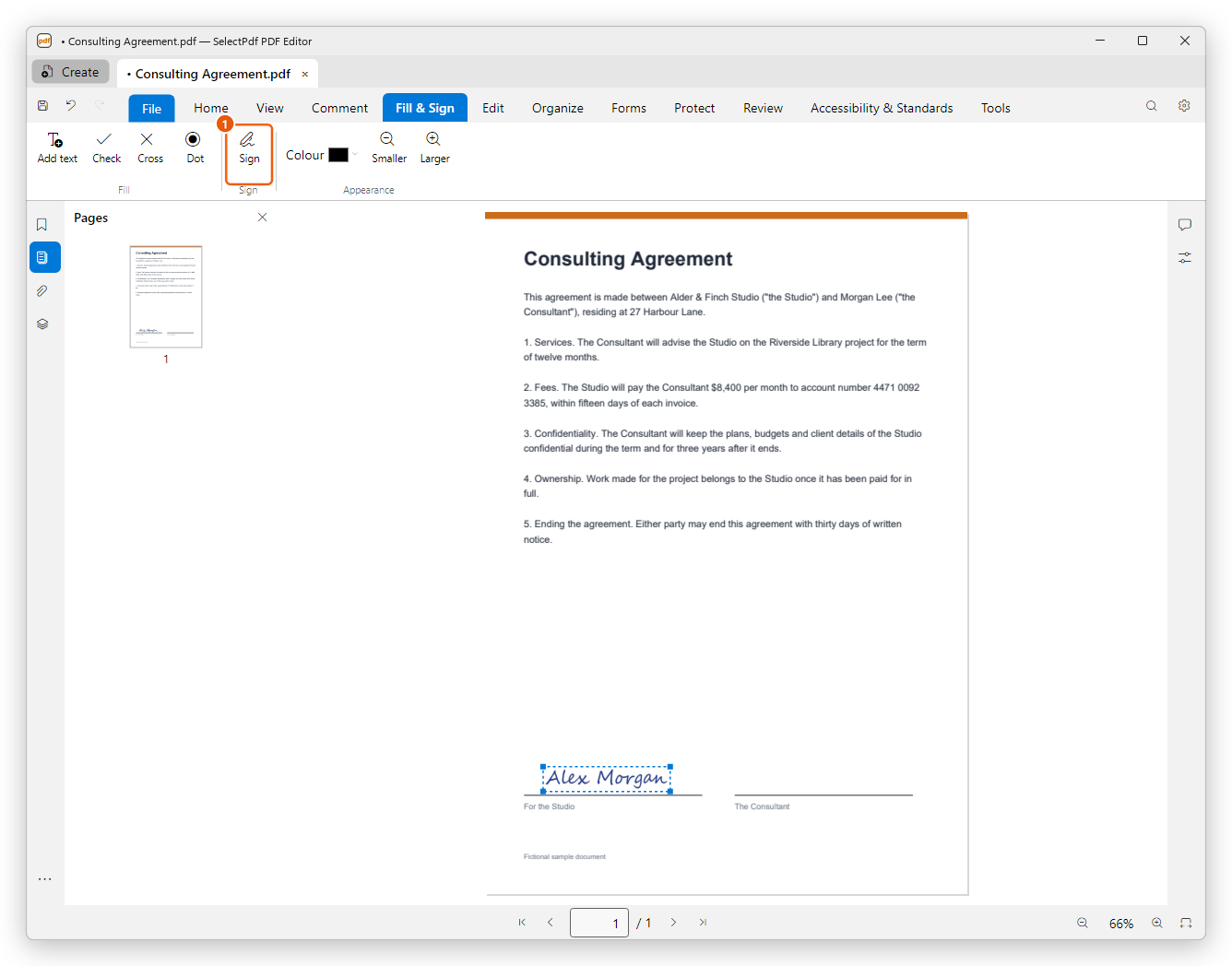
- Sign shows your saved signature: click it to place it again on another page or document.
The signature is selected after you place it:
- Move it: drag it to the line.
- Resize it: drag a corner handle, or click Smaller or Larger on the Fill & Sign tab.
- Change its colour: click Colour on the Fill & Sign tab.
- Remove it: press Delete.
Save the document (Ctrl+S) to keep the signature.
Add your initials
Some documents ask for your initials on every page. Click Sign, then Add initials, and make them as you made your signature. Once saved, Sign lists them under your signature: click them, then click the page where they go. Do the same for each page.
Sign in a signature field
Some forms have a signature field, a box made for the signature. Click it, then click Draw a Signature: your saved signature is placed inside the field, sized to fit it. (If you have no saved signature yet, the editor asks you to make one first.) Sign with ID signs the field with a certificate instead, which needs Pro: see Digital signatures.
Change or remove your saved signature
Click Sign, then Add signature or Add initials to make new ones: with Save for next time ticked, they replace the saved ones. To remove both from this computer, click Sign, then Clear saved signatures. The signatures already placed in documents stay.