Attachments
See the files a PDF carries, open and save them, attach your own files with a description, and play or save the sound and video in a document.
A PDF can carry other files: the spreadsheet behind a report's figures, the photos of a survey, the source of an invoice. They travel inside the PDF, and anyone who has it can open them. The Attachments panel lists them all: the files attached to the document itself, and the files attached to its pages as comments.
The Attachments panel
Click Attachments in the bar at the left of the window (the paper clip).
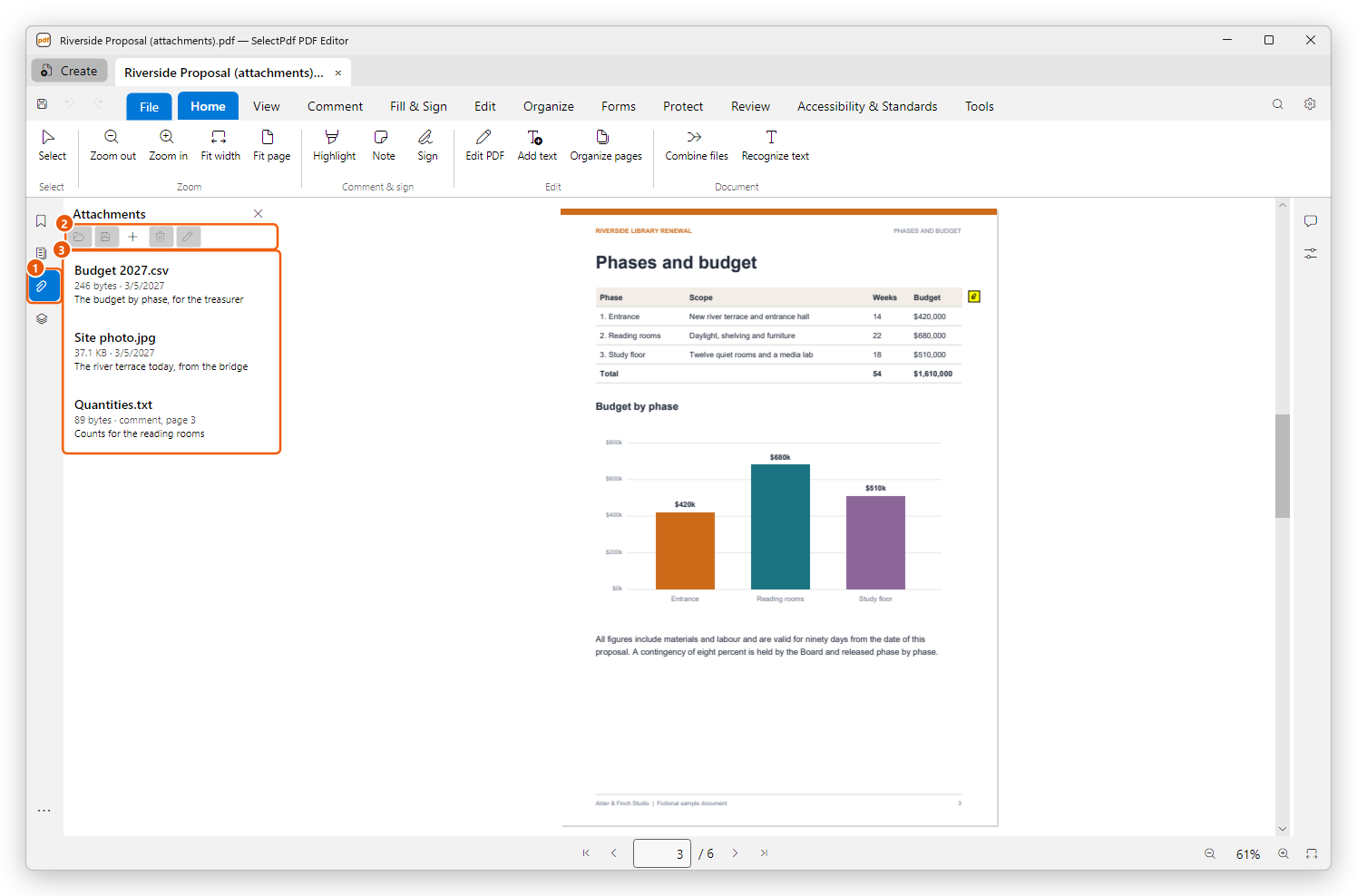
- Attachments: opens the panel.
- The buttons, from left to right: Open, Save attachment, Attach a file, Delete attachment and Edit description.
- The files, with their size, date and description. A file attached to a page as a comment says so, with its page: comment, page 3. Select such a file to go to its page.
The document's own files come first, then the comments' files. A document with no files says so, and offers the plus to add one.
Open an attached file
Select the file and click Open, or double-click it.
- A PDF opens in a tab of its own.
- A Word, Excel or PowerPoint document, a text, Markdown, CSV or XPS file, or a picture opens as a preview: the editor makes a PDF of it and opens it in a new tab, named after the file with (preview). The preview is not saved anywhere until you save it.
- Any other file opens with the app Windows uses for it, after you confirm: an attached file can contain anything, so open only files you trust.
- Programs and scripts are never opened. Save them instead, if you want to look at them.
Save an attached file
Select the file, click Save attachment and choose where to save it. The file is written as it is in the PDF.
Attach a file
- Click Attach a file (the plus).
- Choose one or more files and click Open.
The files are attached to the document and selected in the list. To say what a file is, select it and click Edit description, type the description and click OK. Leave it empty to remove the description.
To attach a file to a particular place on a page, as a comment with an icon readers click, use Attach file on the Comment tab: see Drawing and shape comments. Such files are listed here too.
Delete an attached file
Select the file and click Delete attachment, then confirm. Deleting a comment's file deletes the comment from its page. Undo (Ctrl+Z) brings it back.
Opening and saving attached files is free. Attach a file, Delete attachment and Edit description need Pro.
Save the document (Ctrl+S) to keep the files you attached or deleted.
Sound and video
A document with sound or video clips lists them under Sound and video, in the same panel, with their kind, size and page.
- Play: plays the clip with the player of your system, after you confirm.
- Save media as: saves the clip as a file. A sound comment recorded in a PDF is saved as a WAV file.
Clips kept outside the document (a link to a file or a web address) cannot be played from the panel: the editor says where they are.
Attachments and privacy
Attached files are easy to forget. Before you share a document:
- Remove hidden information lists the attached files with the other things readers do not see, and removes the ones you choose.
- Password protection can encrypt only the attached files, so the document opens freely but its files need the password.
A PDF Portfolio is a PDF made to carry several files, with a cover page that lists them.