The editor and Windows
Make the PDF Editor your default PDF app, open and combine files from the right-click menu in File Explorer, use the taskbar's jump list, drag files onto the window, and start the editor from the command line.
When you install the editor, it tells Windows that it can open PDF files and adds its commands to File Explorer, for your Windows account only. Uninstalling the editor takes all of this away again.
These are the installed editor's: they are not there in a copy of the editor that was not installed with its setup program. See Install and update.
Make the editor your default PDF app
Windows does not let a program make itself the app that opens PDF files: it asks you to confirm the choice in its own Default apps settings. The editor takes you there in three ways:
When you install it, select Open Windows settings to make this my default PDF app among the setup's additional tasks.
When the editor starts and is not your PDF app yet, it asks:
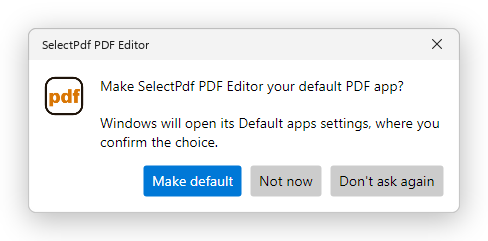
The editor offers to become the default PDF app Make default opens Windows' settings at the editor's page. Not now asks again a month later; Don't ask again never asks again.
At any time: open Preferences, and on the General page click Make default beside Default PDF app. The button is there only while the editor is not your PDF app.
In Windows' settings, set the .pdf type to SelectPdf PDF Editor. From then on, double-clicking a PDF in File Explorer, or opening one attached to an email, opens it in the editor.
Even when it is not your default app, you can open a PDF with it: right-click the file in File Explorer, click Open with, then SelectPdf PDF Editor.
The right-click menu in File Explorer
Right-click a PDF in File Explorer:
- On Windows 11, the menu has SelectPdf PDF Editor, and under it View or edit with SelectPdf and Combine with SelectPdf PDF Editor.
- On Windows 10, the two commands are in the menu itself.
View or edit with SelectPdf opens the file in the editor, whichever app is your default for PDFs. Select several PDFs first to open them all, each in its own tab.
Combine with SelectPdf PDF Editor opens Combine Files with the files you selected, ready to be put in order and combined into one PDF. It is also on the menu of the other files Combine Files takes: Word, Excel and PowerPoint documents, text files (.txt, .md, .rtf, .csv), XPS documents and pictures (.png, .jpg, .bmp, .gif, .tif). Select a mix of them, for example a PDF, a Word document and two photos, and combine them in one go.
Combining files needs Pro. Opening, viewing and editing a PDF from the menu work in the free version too.
The commands are in the language you chose for the editor: when you change the language in Preferences, the menu changes with it.
Open files while the editor runs
The editor runs once. When it is already open and you open more files, from File Explorer, the right-click menu or the taskbar, they open in the window you have, each in its own tab, and the window comes to the front. A file that is already open is not opened twice: its tab comes to the front.
The taskbar's jump list
Right-click the editor's button on the taskbar to see:
- Recent: the last documents you opened, up to ten. Click one to open it.
- Open a file: the editor's Open dialog.
To take a document off the list, right-click it there and choose Windows' Remove from this list. It stays off until you open that document again.
Drag and drop
Drag files from File Explorer, or from the desktop, and drop them on the editor's window:
- A PDF opens in its own tab.
- A Word, Excel or PowerPoint document, an XPS document, a picture or a text file is turned into a PDF, which opens as a new document that is not saved yet. See Create a PDF.
You can drop several files at once.
Start the editor from the command line
The installed editor is SelectPdf PDF Editor.exe, in the folder you chose when installing it (normally %LOCALAPPDATA%\Programs\SelectPdf PDF Editor). It takes the files to open, for example:
"%LOCALAPPDATA%\Programs\SelectPdf PDF Editor\SelectPdf PDF Editor.exe" "C:\Reports\Q1.pdf" "C:\Reports\Q2.pdf"
| Option | What it does |
|---|---|
| files | Opens each file, as a double-click would. |
| --combine files | Opens Combine Files with the files, as the right-click menu's command does. |
| --open | Shows the Open dialog, as the jump list's Open a file does. |
| --lang code | Starts in that language for this time, for example --lang de for German. |
If the editor is already running, the files open in its window.