Calculate, format and check values
Make a form work out totals by itself, show numbers as amounts, percentages and dates, and refuse values that are out of range, with the Format, Validate and Calculate properties of its fields.
A form can do the arithmetic for the person filling it: an order adds up its lines, applies a discount and shows the total, as soon as a quantity is typed. Three tabs of a field's properties make this happen:
- Format says how the value is shown: as a number, an amount, a percentage, a date...
- Validate says which values the field accepts.
- Calculate works out the field's value from other fields.
Text fields and dropdowns have these tabs. To open them: on the Forms tab, click Prepare form, select the field, and click Properties... in the Fields panel (see Form field properties).
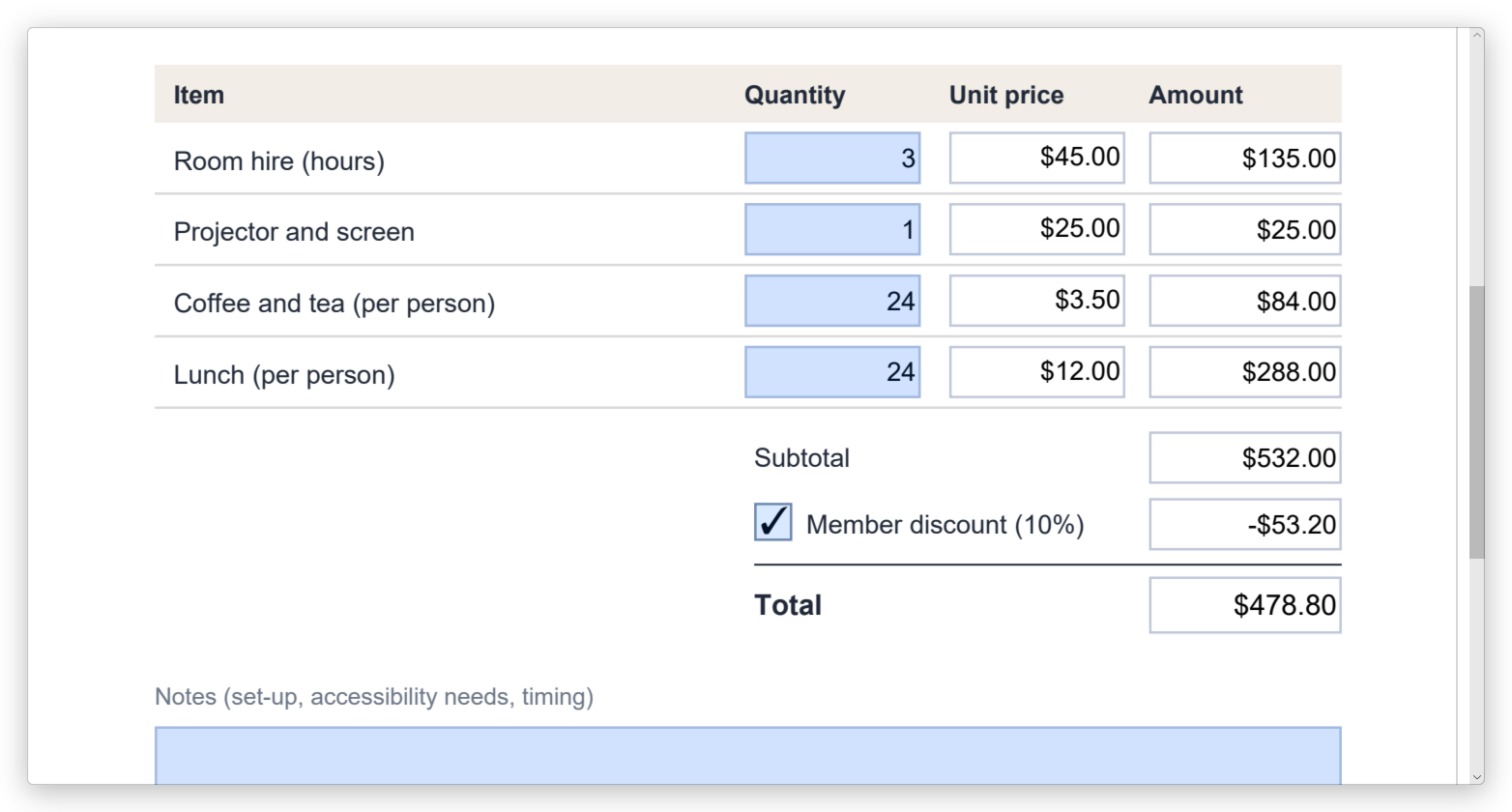
The pictures on this page show a room booking form: each line of the order has a quantity, a unit price and an amount, followed by a subtotal, a member's discount and the total.
Format: how a value is shown
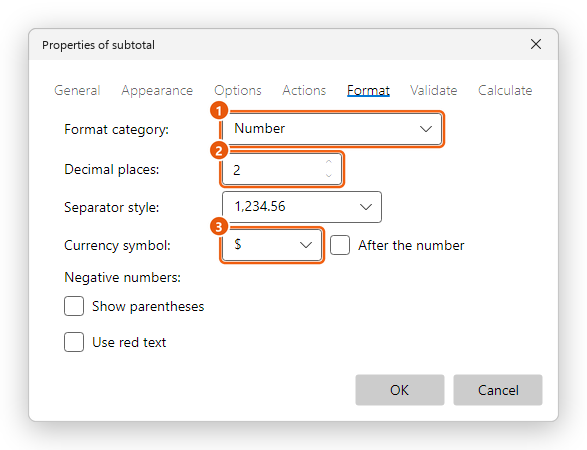
- Format category.
- Decimal places.
- Currency symbol.
Choose the Format category:
- None: the value is shown as it was typed.
- Number: a number, with the Decimal places and the Separator style (1,234.56, 1234.56, 1.234,56, 1234,56 or 1'234.56). For an amount, choose a Currency symbol, before the number or After the number. Negative numbers can Show parentheses and Use red text.
- Percentage: the value as a percentage, with its Decimal places and Separator style. The value is a fraction: 0.15 shows as 15.00%.
- Date and Time: choose a pattern under Format, or type your own: d is the day, m the month (mmm and mmmm its name), yy or yyyy the year, H or h the hour, MM the minutes, ss the seconds and tt am or pm. A date field also gets a calendar to pick the day.
- Special: Zip Code, Zip Code + 4, Phone Number, Social Security Number, or an Arbitrary Mask: in the Mask, 9 stands for a digit, A for a letter, O for a letter or digit, X for any character and * for the rest; other characters are written as they are. AA-9999 takes two letters, a dash and four digits.
- Custom: a Custom format script that sets how the value is shown, and a Custom keystroke script that checks each key typed (see JavaScript).
The format also checks what is typed: a field formatted as a number does not take letters, and a value that does not fit the format is refused, with a message that names the field. The value the form keeps is the number itself: 45, shown as $45.00. Calculations use that number.
Validate: which values are accepted
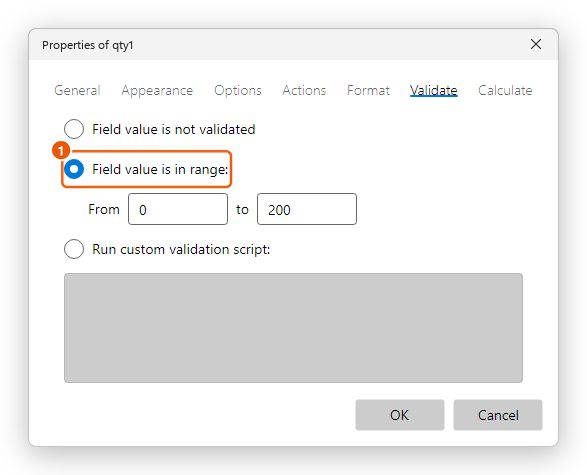
- Field value is not validated: any value is accepted.
- Field value is in range (1): type the lowest value after From and the highest after to. Leave one of them empty for no limit on that side.
- Run custom validation script: a script that accepts or refuses the value.
A value out of range is refused: a message says which values are accepted, for example Invalid value: must be greater than or equal to 0 and less than or equal to 200., and the field keeps its value from before.
A custom validation script sees the new value as event.value, and refuses it by setting event.rc to false. This one asks for a whole email address:
if (event.value != "" && String(event.value).indexOf("@") < 0) {
    app.alert("Please type a whole email address, such as name@example.com.");
    event.rc = false;
}
Calculate: values worked out from other fields
The Calculate tab has three ways to work out the value.
The sum, product, average, minimum or maximum of fields
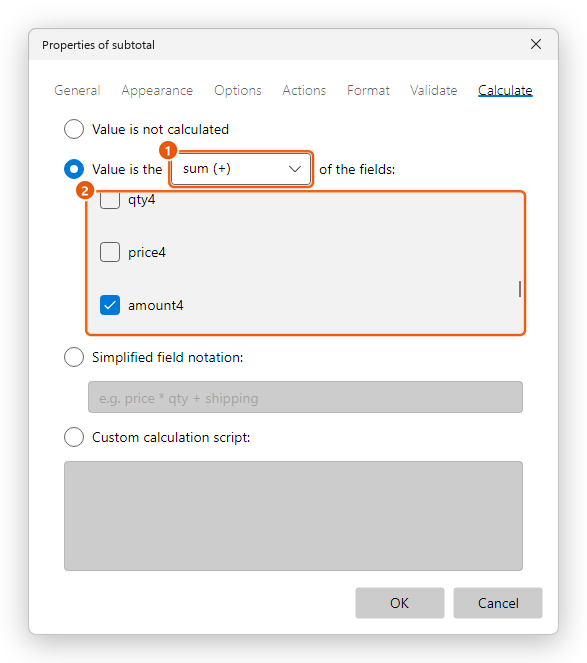
- Choose Value is the and the function: sum (+), product (x), average, minimum or maximum.
- Tick the fields in the list.
The subtotal of the booking form is the sum (+) of amount1 to amount4.
Simplified field notation
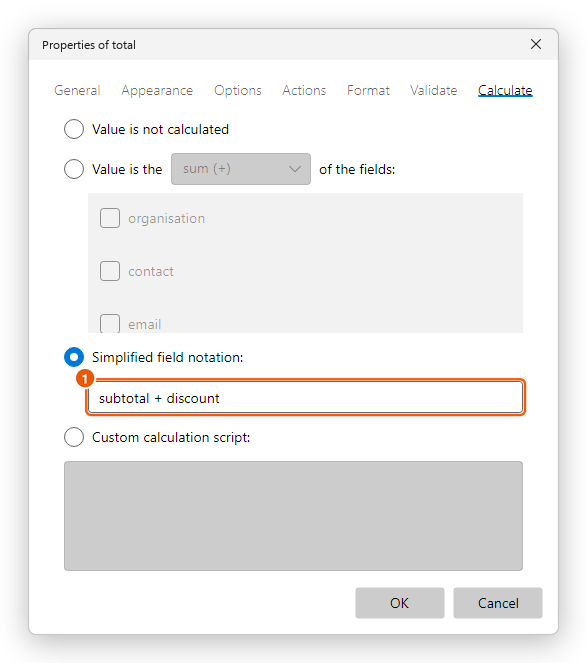
Choose Simplified field notation and type a formula with the names of the fields, numbers, +, -, *, / and parentheses, for example:
qty1 * price1for the amount of an order line;subtotal + discountfor the total (1);(price - deposit) * 1.08for an amount with 8% tax.
A name with spaces or other signs needs a backslash before each of them: Ship\ cost for the field Ship cost.
A custom calculation script
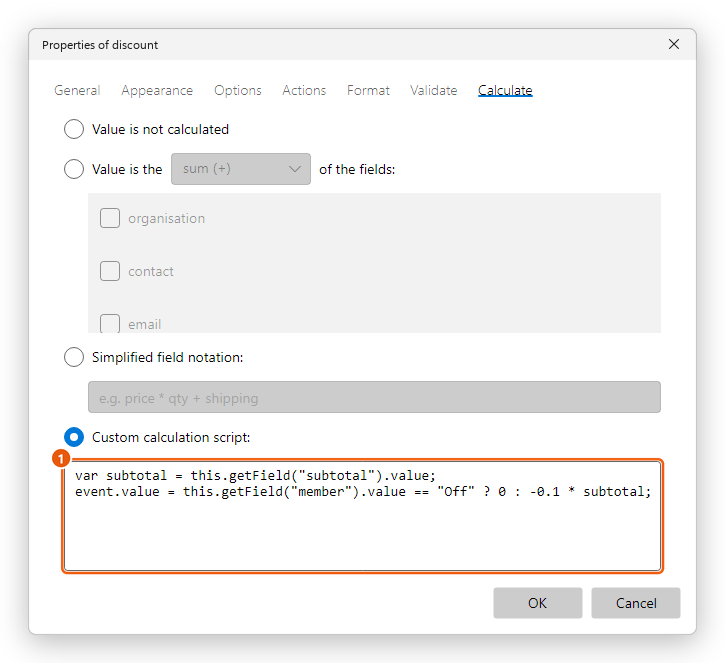
For anything else, choose Custom calculation script and write a JavaScript that sets event.value (1). The member's discount of the booking form is a tenth of the subtotal, when the member box is ticked:
var subtotal = this.getField("subtotal").value;
event.value = this.getField("member").value == "Off" ? 0 : -0.1 * subtotal;
A ticked check box has the value of its Export value (Yes unless you changed it), and an empty one has Off.
When the calculations run
Every time a value of the form changes, the editor works out all the calculated fields again, and shows them with their format. This also happens when the form is reset, and when its data is imported.
The fields are calculated in an order the document keeps: at first, the order they were given their calculation. A field that uses another calculated field must come after it, for example the amounts before the subtotal, and the subtotal before the total. To change the order:
- In Prepare form, click Calculation order on the Forms tab (or search for it with Ctrl+K).
- The Calculated Fields dialog lists the fields that calculate, first to last. Click a field, then click Up or Down to move it.
- Click OK. Undo takes the new order back.
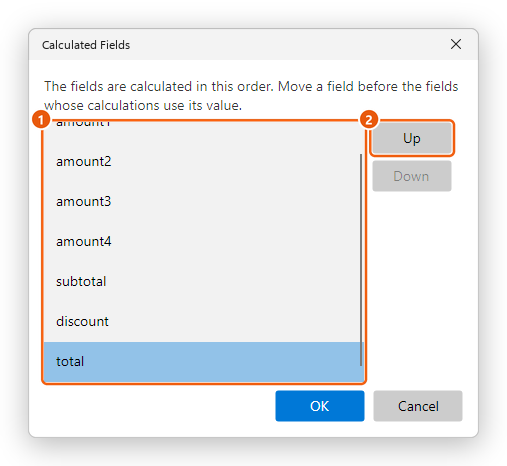
- The fields, in the order they are calculated.
- Up and Down move the field chosen.
Make calculated fields Read-only (on the General tab) so that people do not type over them. A calculation still sets a read-only field.
Example: an order that adds up
To make the booking form's order work out its total:
- In each amount field, on the Calculate tab, choose Simplified field notation and type the line's formula:
qty1 * price1in amount1,qty2 * price2in amount2, and so on. - In the subtotal field, choose Value is the sum (+) and tick amount1 to amount4.
- In the discount field, choose Custom calculation script and type the script above.
- In the total field, choose Simplified field notation and type
subtotal + discount. - On the Format tab of the prices, the amounts, the subtotal, the discount and the total, choose Number, 2 Decimal places and the Currency symbol $.
- On the Validate tab of each quantity, choose Field value is in range from 0 to 200.
- On the General tab of the calculated fields, tick Read-only.
- Click Done and try it: type the quantities and tick the box. Then save the form.
Setting the format, validation and calculation of fields needs Pro, as all of Prepare form does. Filling in a form that calculates is free: the editor runs its calculations for everyone.