Bookmarks
Go to the parts of a document with its bookmarks, and add, rename, move, nest, style and delete bookmarks, or choose what a bookmark does when clicked.
Bookmarks are a document's table of contents: a list of titles, each leading to a place in the document. They can be nested, like chapters and their sections. Bookmarks can also do more than go to a page, for example open a web page or show a layer.
Go to a bookmark
- Click Bookmarks in the bar at the left of the window.
- Click a bookmark. The view goes to its page, at the place the bookmark points to.
Click the arrow beside a bookmark to show or hide the bookmarks under it. A long title ends in "…": point at it to read it all. View a PDF shows the panel for reading; this page is about changing bookmarks.
To find a bookmark by its title, use the advanced search with Include bookmarks ticked: see Find text.
The Bookmarks panel
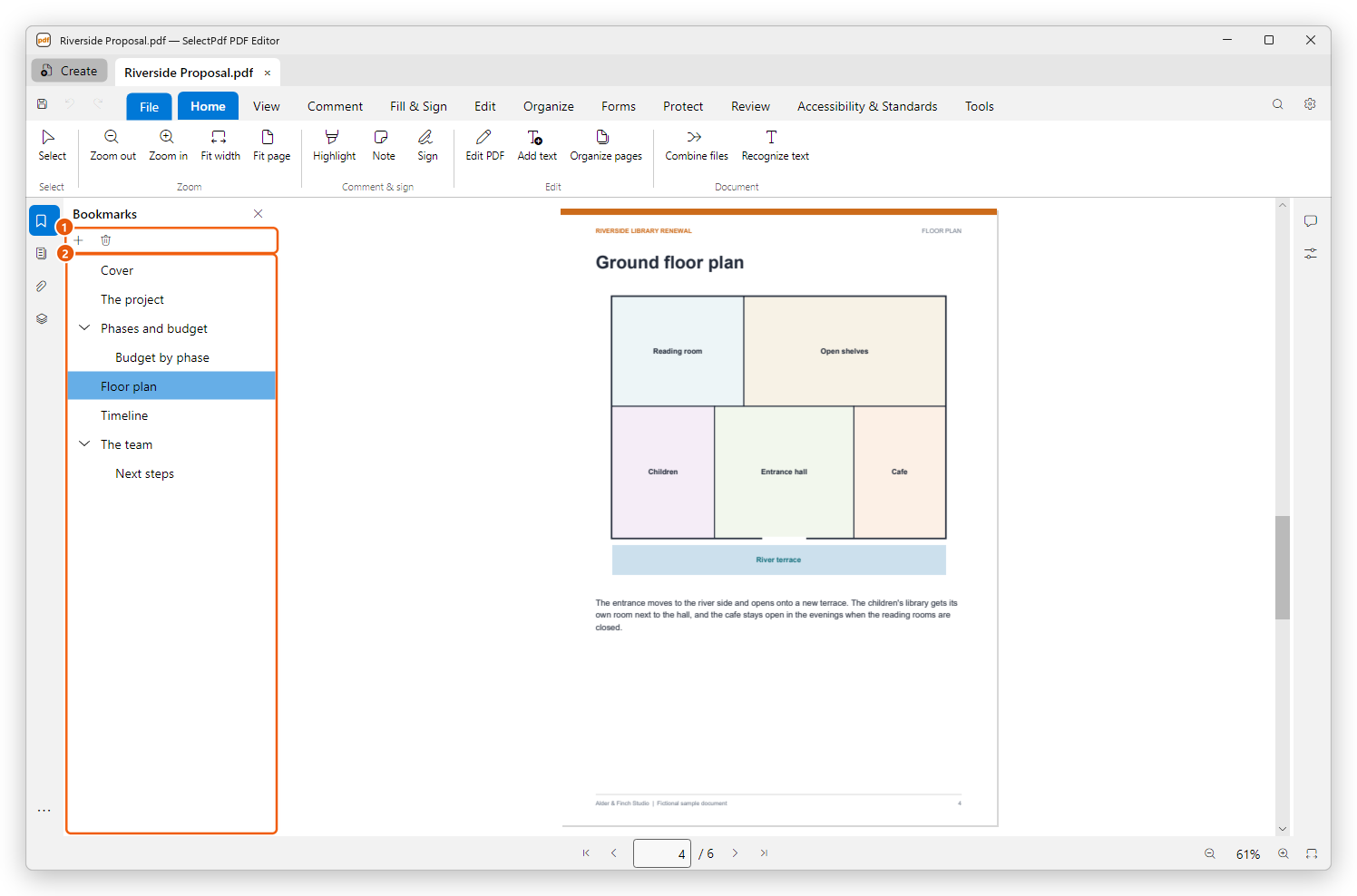
- The buttons above the list: New bookmark (the plus) adds a bookmark, and the bin deletes the selected one.
- The bookmarks. Right-click a bookmark for everything else you can do with it.
The right-click menu has:
- Add bookmark and Add bookmark inside: a new bookmark after this one, or as the last one under it.
- Rename: a new title (or press F2).
- Set destination to the current view: the bookmark now leads to what the window shows.
- Move up, Move down, Move inside the one above and Move out one level.
- Bold, Italic and Colour: how the title looks in the list. Colour offers Default, Red, Blue, Green and Other colour….
- Delete (or press Delete).
- Properties…: the bookmark's look and what it does (see below).
Add a bookmark
- Go to the place the bookmark should lead to: the page, and the part of it at the top of the window.
- To use words of the page as the title, select them first with Select.
- In the Bookmarks panel, select the bookmark the new one should follow (or none, to add it at the end).
- Click New bookmark (the plus) at the top of the panel.
- Type the title, or keep the selected words, and click OK (or press Ctrl+Enter).
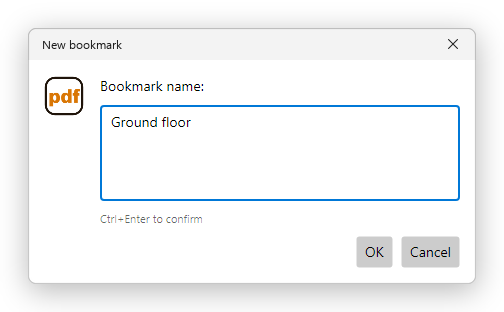
The new bookmark leads to the page and the place shown when you added it, at the reader's own zoom. To add it under the selected bookmark instead of after it, right-click that bookmark and choose Add bookmark inside.
Move and nest bookmarks
Drag a bookmark to its new place in the list:
- Drop it between two bookmarks: a line shows where it goes.
- Drop it onto a bookmark: that bookmark is outlined, and the one you drag goes inside it, as its last bookmark.
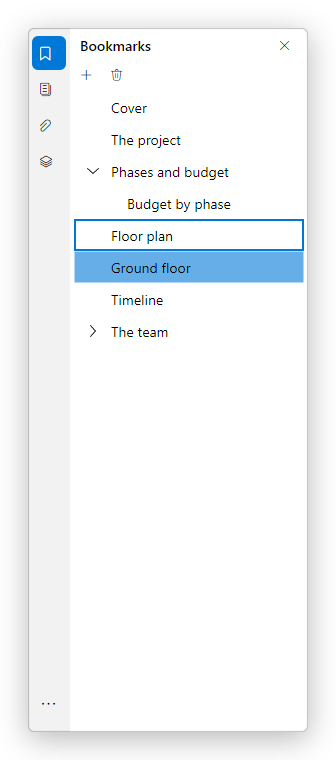
The bookmarks under the one you drag move with it. Near the top or the bottom of the panel the list scrolls, and a closed bookmark you hold the pointer over opens. Press Esc while dragging to cancel.
From the keyboard or a menu, use Move up, Move down, Move inside the one above and Move out one level in the right-click menu.
Rename or delete a bookmark
- Rename: select the bookmark and press F2, or right-click it and choose Rename. Type the new title and click OK.
- Delete: select the bookmark and press Delete, or click the bin at the top of the panel. The bookmarks under it are deleted with it. Deleting a bookmark never changes the pages.
Undo (Ctrl+Z) brings a deleted bookmark back, as it takes back any change to the bookmarks.
Bookmark properties
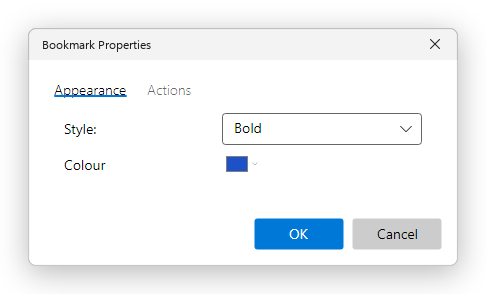
Right-click a bookmark and choose Properties…. The Bookmark Properties dialog has two tabs.
Appearance: the title's Style (Plain, Bold, Italic or Bold and italic) and its Colour.
Actions: what the bookmark does when it is clicked, in the order listed. A bookmark normally has one action, Go to a page view. You can change it, or add others: open a web page or a file, go to a named destination, show or hide layers, run a JavaScript, and the other actions a link can have.
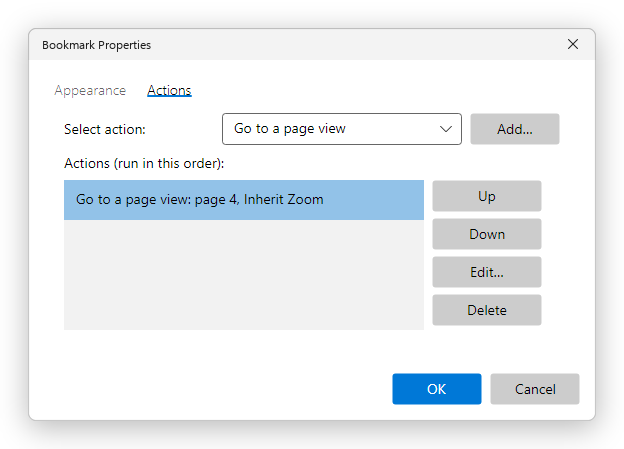
To add an action, choose it under Select action, click Add… and fill in its dialog. Edit… changes the selected action, Up and Down change the order, and Delete removes it. Each kind of action is explained in Links and actions.
Going to bookmarks is free. Adding, renaming, moving, styling and deleting bookmarks, and Bookmark Properties, need Pro.
Save the document (Ctrl+S) to keep the bookmarks in the PDF.
Bookmarks made for you
Some tools make bookmarks as they build a PDF:
- Combine files can add a bookmark at the start of each file.
- Create a PDF from a Word document makes bookmarks from its headings or its own bookmarks.
- Organize pages can split a document at its top-level bookmarks.