Drawings and shapes
Draw freehand with the pen and erase parts of a drawing, draw rectangles, ellipses, lines, arrows, polygons, polylines and clouds, attach files and sounds, and change how a shape looks.
Drawings and shapes are comments, like notes and highlights: they sit on top of the page, and you can move, change or delete them at any time. Use them to circle a figure, point at a detail or mark an area of a plan.
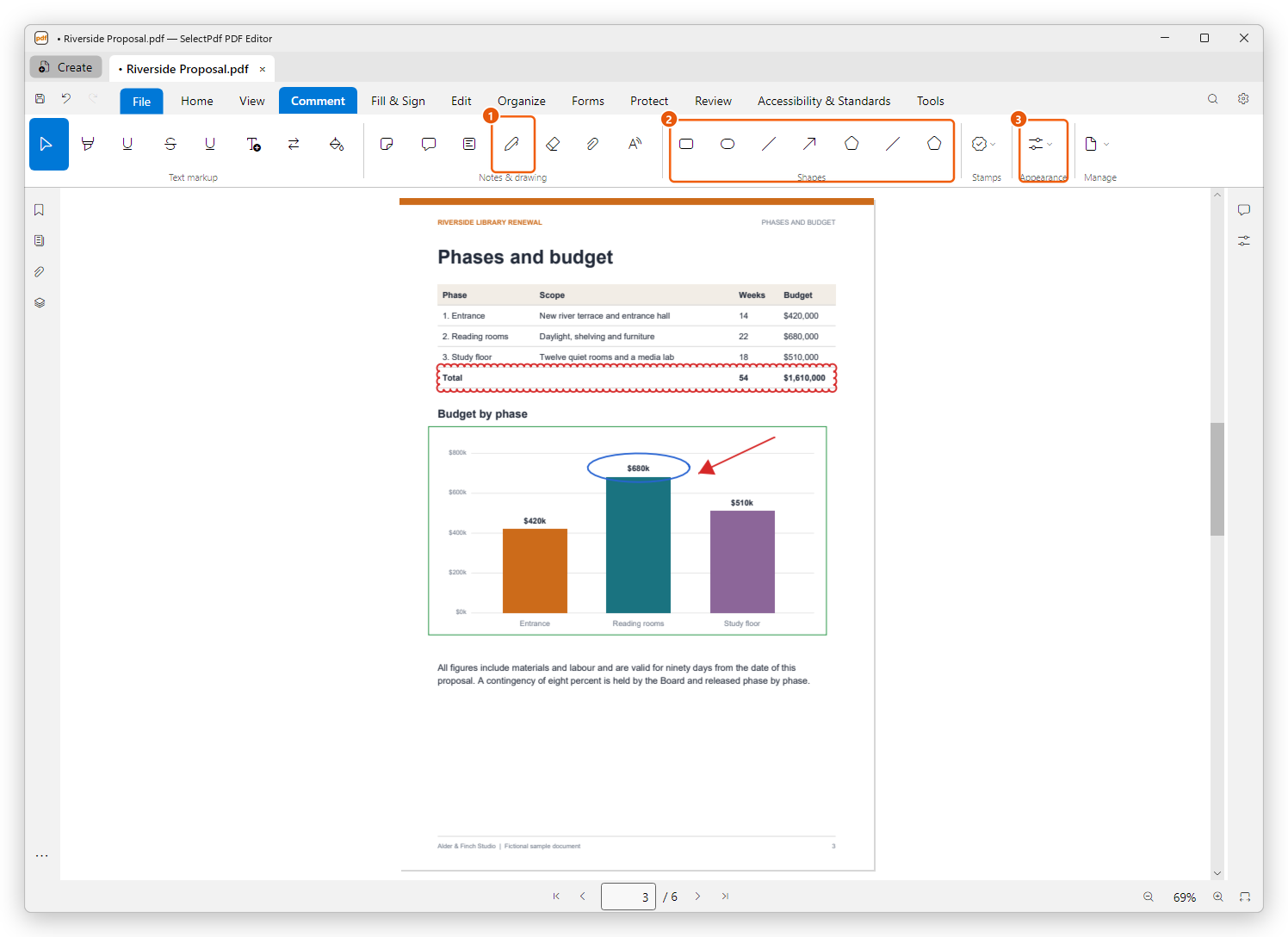
- Pen, in the Notes & drawing group of the Comment tab. On the page: a ring drawn by hand round a figure.
- The Shapes group: from left to right Rectangle, Ellipse, Line, Arrow, Polygon, Polyline and Cloud. On the page: a cloud round the total, an arrow, and a rectangle round the chart.
- The Appearance group: the colour, the fill and the line width of what you draw next.
The buttons of the Comment tab show only their icons: point at a button to see its name. In a narrower window, the Stamps, Appearance and Manage groups fold into one button each: click it to open the group.
Choose the colour and the line width first
Before you draw, choose in the Appearance group:
- the colour of the line (the first button);
- the fill, the colour inside a rectangle, an ellipse, a polygon or a cloud (the second button; choose No colour for an empty shape);
- the line width, in points: 1, 2, 3, 5 or 8.
They apply to everything you draw next. You can change them afterwards for each shape (see Change a drawing or a shape).
Draw freehand with the pen
- Click Pen.
- Drag on the page with the mouse, a pen or your finger. Each stroke you draw, from pressing to releasing, is one drawing.
- Draw more strokes, or press Esc when you are done.
A stroke stays on the page where it started, even when you drag past the page's edge.
Erase parts of a drawing
Eraser works like a rubber on paper, but only on drawings made with the pen (it leaves the page's content and other comments alone).
- Click Eraser. The pointer shows the eraser as a small circle.
- Drag over the parts of the drawings you want to remove. The trail shows in grey as you drag.
- Release the mouse button: what the trail covered is erased.
A stroke cut in two by the eraser becomes two strokes, and a drawing with nothing left is deleted. Each drag is one step that Undo (Ctrl+Z) takes back. Drawings marked Locked in the Properties panel are not erased.
To delete a whole drawing, select it and press Delete.
Draw a rectangle, an ellipse, a line or an arrow
- Click Rectangle, Ellipse, Line or Arrow.
- Drag on the page: from one corner to the opposite one for a rectangle or an ellipse, from one end to the other for a line or an arrow. The arrow head is at the end where you release the mouse button.
Hold Shift while you drag to draw a square instead of a rectangle, a circle instead of an ellipse, or a line or an arrow that is level, upright or at 45°.
A click without dragging makes a shape of a standard size: a rectangle or an ellipse 100 by 60 points with its top-left corner at the click, or a line or an arrow 100 points long that starts at the click and goes to the right.
To draw shapes that line up, turn on Snap to grid on the View tab: the corners and ends of the shapes then land on the grid's lines. See Rulers, grids and guides.
Draw a polygon, a polyline or a cloud
A polygon is a closed shape with as many corners as you like; a polyline is a line with several segments, open at the end; a cloud is a polygon with a scalloped border, used to circle an area that needs attention, as on drawings and plans.
- Click Polygon, Polyline or Cloud.
- Click each corner in turn. While you draw, the next segment follows the pointer, and for a polygon or a cloud a dashed line shows how the shape closes.
- Double-click the last corner, or press Enter, to finish. Press Esc to give up the shape you are drawing.
A polygon and a cloud need at least three corners, and a polyline two. The shape stays on the page where you clicked the first corner.
Attach a file to a page
Attach file puts a file in the document as a comment, shown on the page as a pushpin icon: for example a spreadsheet with the figures of a table, or a photo of the site.
- Click Attach file.
- Click the page where the icon goes.
- Choose the file.
- Type a description, or keep the file name that is offered, and click OK.
The file is in the document from then on, and goes with it when you send it. Point at the icon to read its description. To open the file or save a copy of it, use the Attachments panel: see Attachments. The tool goes back to Select after each file.
Add a sound comment
Record audio adds a sound comment from a sound file:
- Click Record audio.
- Click the page where the sound's icon goes.
- Choose a sound file (WAV).
To hear it, double-click its icon on the page. The editor asks first, then plays the sound with the system's player: click Play. The sound also shows in the Attachments panel, where you can save it as a file.
The editor does not record from the microphone: record the sound with another app (for example Windows' Sound Recorder), save it as a WAV file, then add it here.
Change a drawing or a shape
Click a drawing or a shape with Select to select it. A dashed frame shows around it, with a handle at each corner.
- Move it: drag it.
- Resize it: drag a corner handle. The opposite corner stays where it is.
- Delete it: press Delete.
A shape marked Locked (see General below) is not moved, resized, changed or deleted until you clear Locked.
- Change its colour or its fill: pick a colour in the Appearance group while the shape is selected.
For all its settings, open the Properties panel: click the Properties icon on the right side of the window.
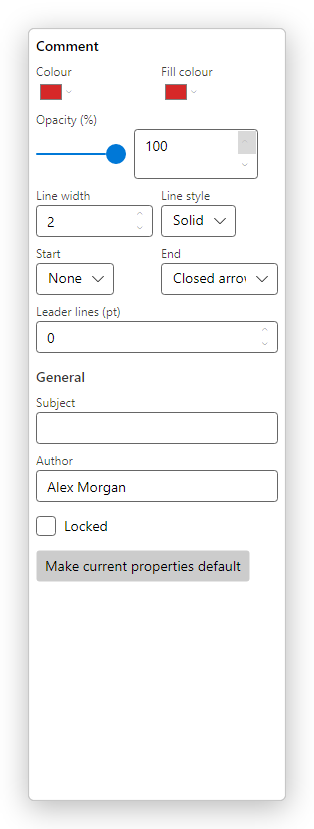
- Colour and Fill colour: the line, and the inside of a shape (for a line, the inside of its closed arrow heads). No colour leaves the inside empty.
- Opacity: from 0 (invisible) to 100 percent (solid).
- Line width, in points, and Line style: Solid, Dashed, Dotted, Dash dot or Long dash. A rectangle, an ellipse or a polygon can also have a Cloudy or Cloudy (large) border: this is how a rectangle becomes a cloud.
- Start and End, for a line or a polyline: the shape of each end: None, Open arrow, Closed arrow, Reverse open arrow, Reverse closed arrow, Butt, Diamond, Circle, Square or Slash. An arrow is a line with a Closed arrow at its end.
- Leader lines (pt), for a line: short lines at both ends, at right angles to it, as on a dimension in a technical drawing. A negative length draws them on the other side.
- General: the Subject, the Author and Locked: a locked comment keeps its place, its size and its look, and cannot be deleted.
Make current properties default uses the selected shape's colour, fill, opacity and line width for the comments you add next.
The Comments panel lists drawings as Drawing, and each shape by its kind; there you can add a reply or a status to it, as to any comment. See Manage comments.
All the drawing and shape tools, attachments and sound comments are free.
To measure distances and areas on a plan instead, see Measure. For notes, text boxes and callouts, see Comment on a PDF.