Edit text and images
Change the text of a PDF, its fonts and colours, move and resize text, images and shapes, add new text and pictures, and replace an image, in the Edit PDF mode.
In the Edit PDF mode you change what is on the pages themselves: the text, the pictures and the drawings, as in a word processor. To add notes or highlights without changing the page, use comments instead.
Editing the content of the pages needs Pro: Edit PDF and everything on the Edit tab, including links, headers and footers and watermarks.
Start editing
- Open the document and click the Edit tab. The Edit PDF mode starts, and Edit PDF shows as pressed. You can also click Edit PDF on the Home tab.
- Click a paragraph, a picture or a drawing on the page to select it. A blue frame with handles shows around it.
- The Properties panel on the right shows what you can change about it.
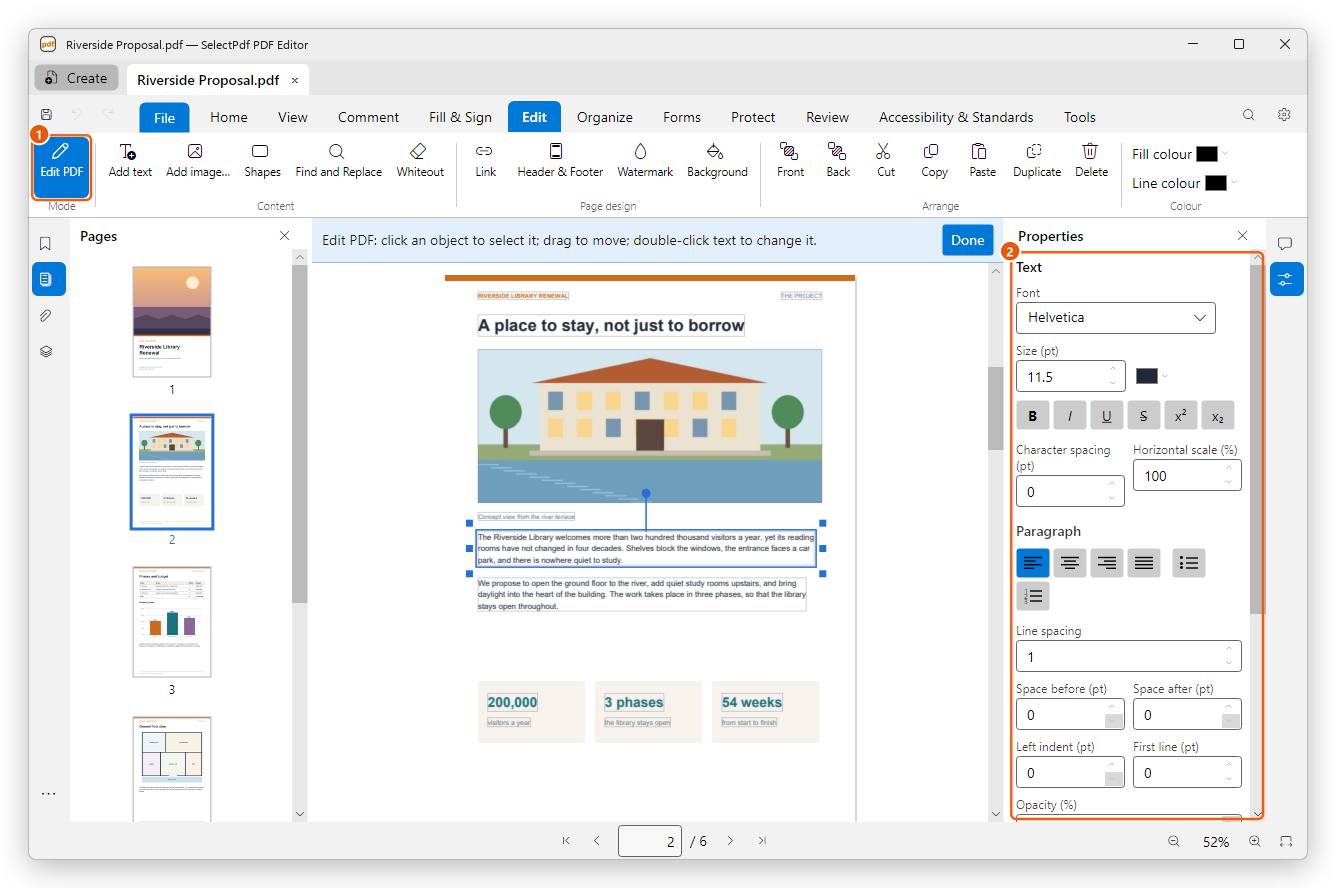
- Edit PDF is on while the mode is on.
- The Properties panel: font, size, colour and paragraph settings of the selected text.
A blue bar above the page reminds you how the mode works. To leave the mode, click Done on that bar or press Esc.

The Edit tab has the tools of the mode: Edit PDF (1), Add text (2), Add image… (3), Shapes, Find and Replace and Whiteout, then the page design tools (Link, Header & Footer, Watermark and Background), the arrange tools and the colours.
Change text
- Double-click the text you want to change. A text cursor appears in the paragraph.
- Type, delete and select text as in a word processor. The text wraps inside the paragraph as you type.
- To change the look of some words, select them and change them in the Properties panel: Font, Size (pt), the colour, Bold, Italic, Underline and the other styles. Ctrl+B, Ctrl+I and Ctrl+U work too.
- Under Paragraph, set the alignment, a bulleted or numbered list, the Line spacing, the space before and after the paragraph and its indents.
- To finish, click outside the paragraph or press Ctrl+Enter. Press Esc to cancel the change.
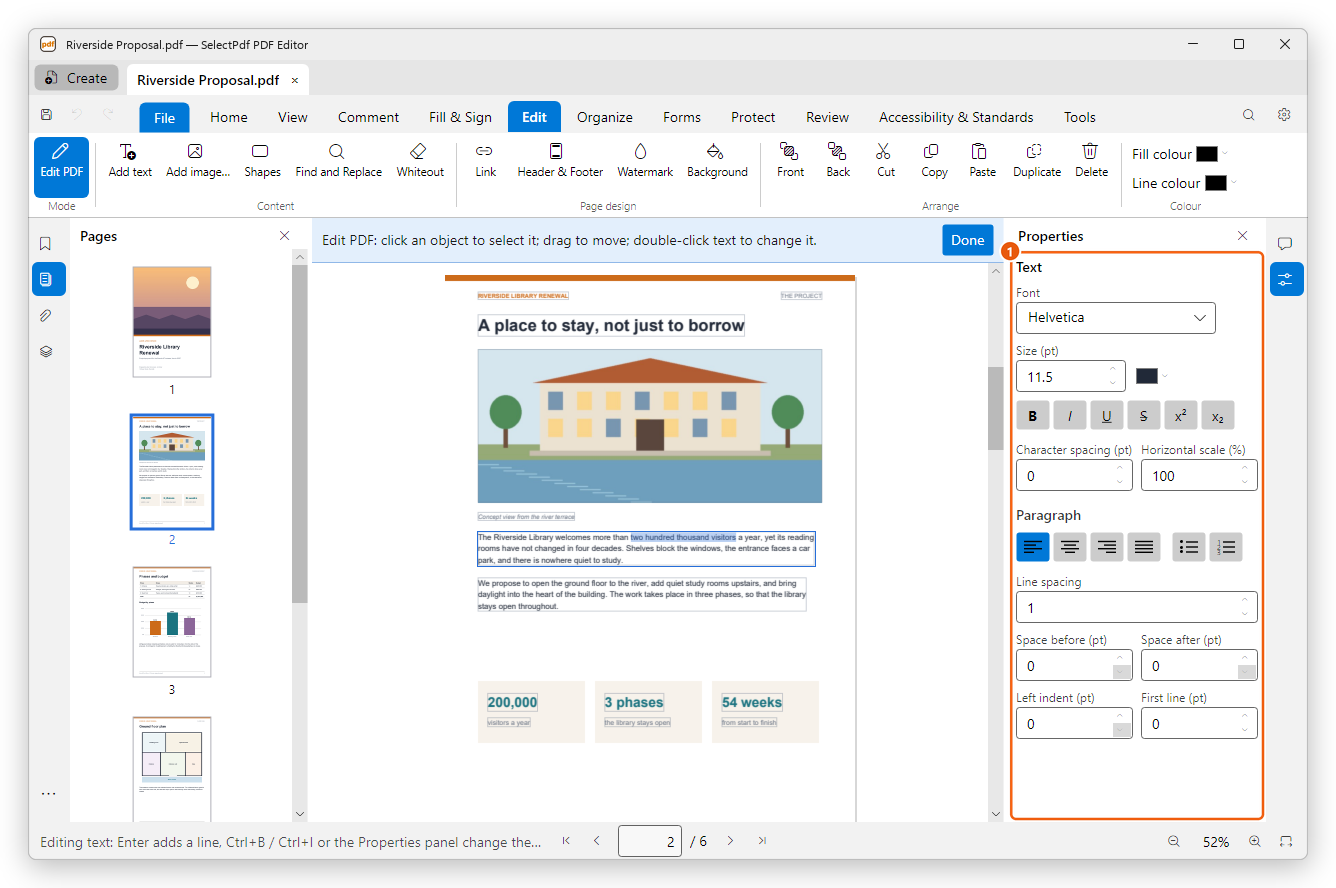
You can also right-click a paragraph and choose Edit Text.
To change a word or a phrase everywhere in the document, click Find and Replace (Ctrl+H). The new text keeps the look of the text it replaces.
If the document uses a font that is not on your computer, the Font list says so, and the letters you add are drawn in a similar installed font. Choose Add font… in the list to use a font file of your own.
Move, resize and turn
- Move: drag the selected paragraph, picture or drawing. The arrow keys move it by one point; with Shift, by ten.
- Resize: drag a handle at its corners or sides. With Shift, a picture keeps its proportions. For a paragraph, the handles set the width the text wraps to.
- Turn: drag the round handle above it, or type an angle in Rotation (°) in the Properties panel.
- Select several: hold Shift or Ctrl and click them, or drag a box around them on an empty part of the page. Ctrl+A selects everything on the page.
The Arrange tools put the selection in front of (Front) or behind (Back) what it overlaps, and Cut, Copy, Paste, Duplicate and Delete work on it as their names say. The same commands are in the menu you get when you right-click the selection.
Add text
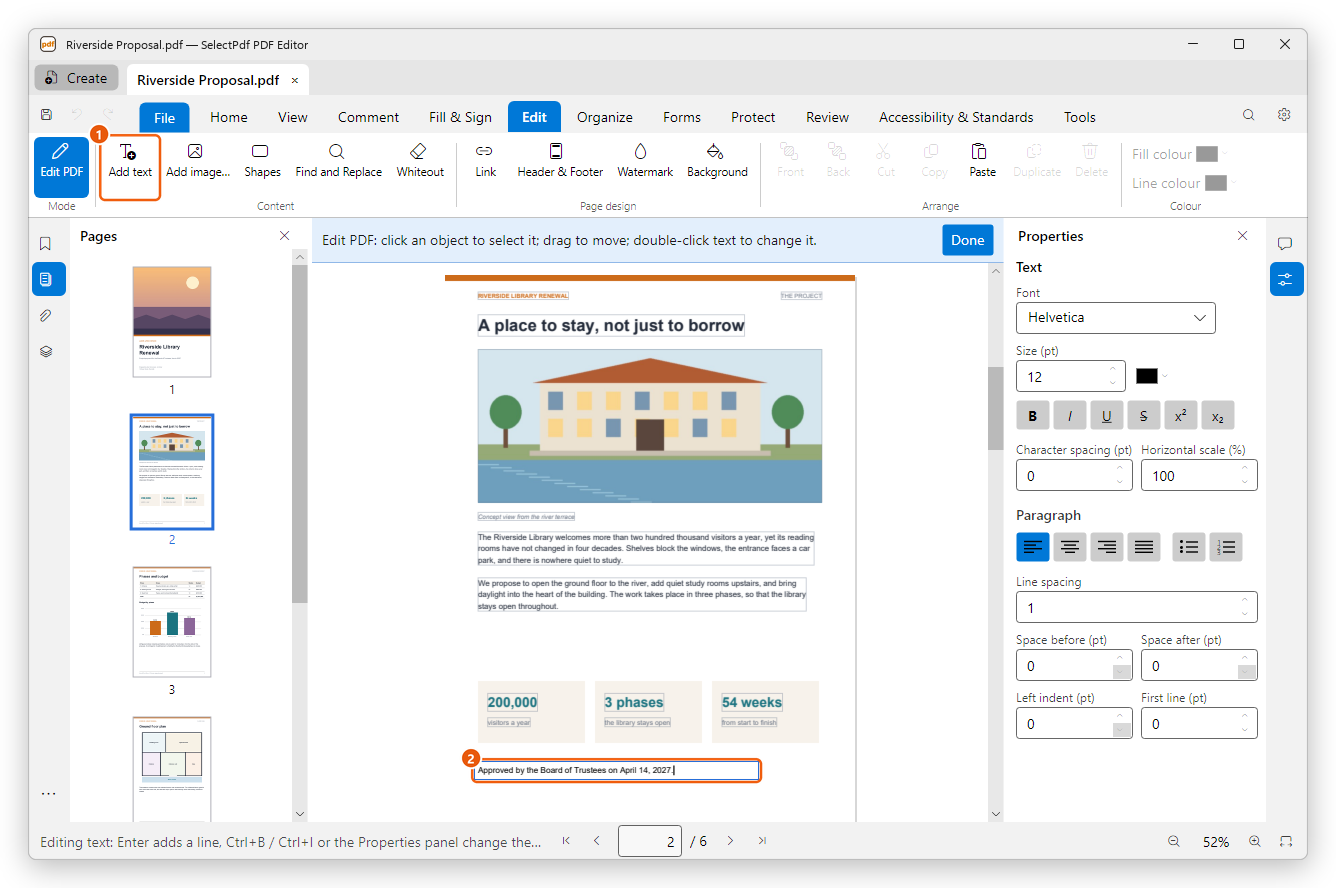
- On the Edit tab, click Add text.
- Click on the page where the text goes.
- Type the text. Change its font, size and colour in the Properties panel as you type.
- Click outside the box to finish.
Add or replace a picture
To add a picture:
- On the Edit tab, click Add image….
- Choose a picture file (PNG, JPEG, BMP or GIF).
- Drag a box on the page where the picture goes, or click to place it at its own size.
To replace a picture, select it, then click Replace image… in the Properties panel (or right-click it and choose Replace image…) and choose the new file. The new picture takes the place and size of the old one.
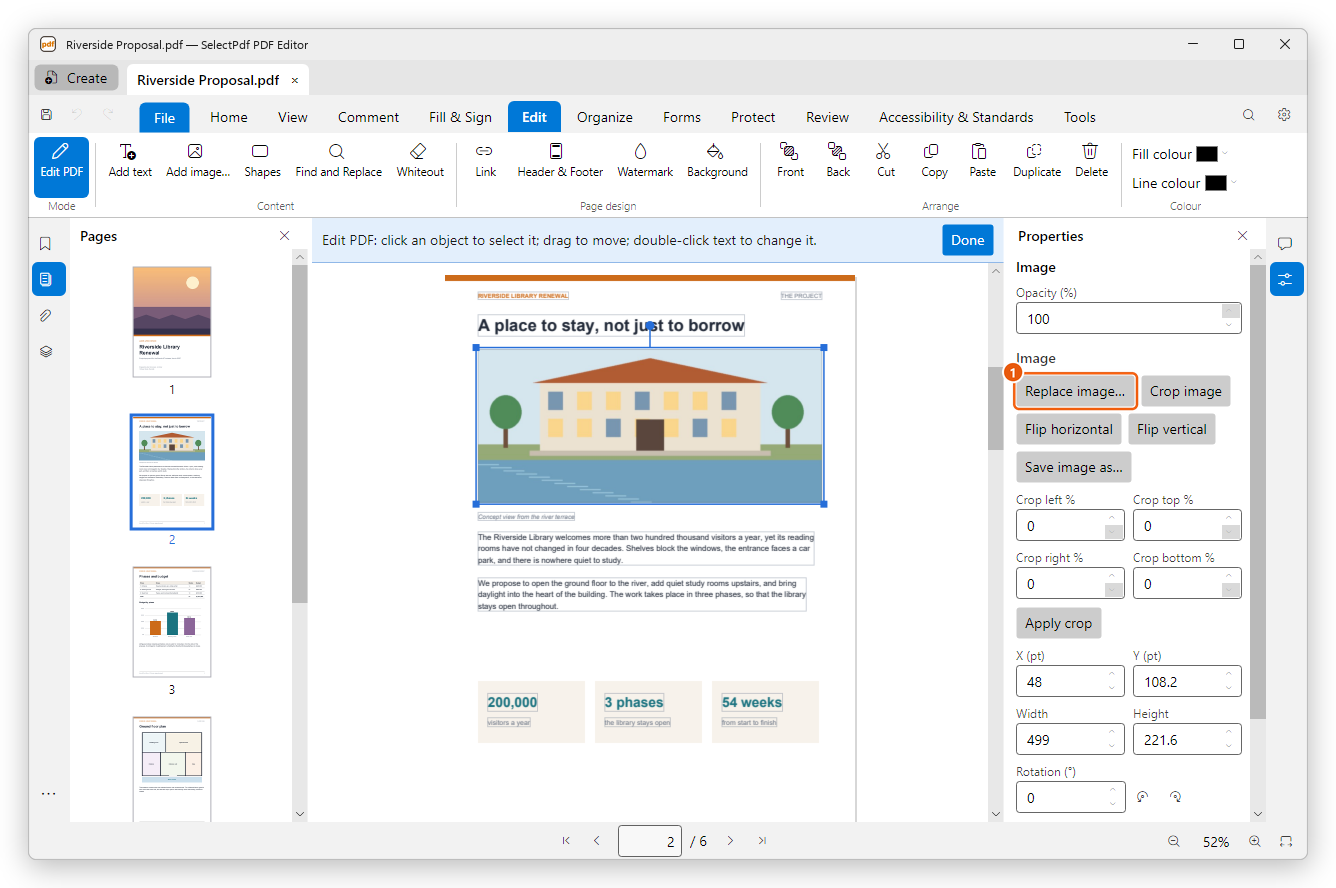
The panel also has Crop image, Flip horizontal, Flip vertical and Save image as…, and the picture's Opacity (%), position and size.
Draw shapes and cover content
- Click Shapes and choose Rectangle, Ellipse, Line, Arrow or Freehand, then draw on the page. The shape becomes part of the page; change its colours with Fill colour and Line colour.
- Whiteout draws a white box over part of the page.
Whiteout only hides what is under it: the text is still in the file and can be copied or found. To remove content for good, redact it.
Add a link
- On the Edit tab, click Link, then drag a box over the text or picture that should be the link.
- In the Create Link dialog, choose what the link does under Select action (for example Go to a page view or Open a web link), click Add… and fill in its dialog, then click OK.
To change or remove a link, click Link, then click the link. Links and actions explains every kind of action, how links look, and the actions a document or a page runs by itself.
Undo and save
Every change can be undone: click Undo at the top left of the window or press Ctrl+Z, and Redo (Ctrl+Y) to do it again. Your changes are written to the file when you click Save (Ctrl+S).