Document properties
See and change a PDF's title, author, subject and keywords, its security, fonts, how it opens, its custom properties and its print and reading settings, in Document Properties.
Every PDF carries information about itself: a title, an author, keywords that help find it, when it was made, how it should open, and more. Document Properties shows all of it, and lets you change most of it.
Open Document Properties
With a document open, do one of these:
- Click File, then Document Properties.
- Press Ctrl+D. (In Edit PDF, Ctrl+D duplicates the selected object instead.)
- Press Ctrl+K and type properties. See Search commands.
The dialog has six tabs. Change what you want on any of them, then click OK to put the changes in the document, or Cancel to leave it as it was. The changes are one step that Undo takes back, and like any change they are kept in the file when you save it.
Description
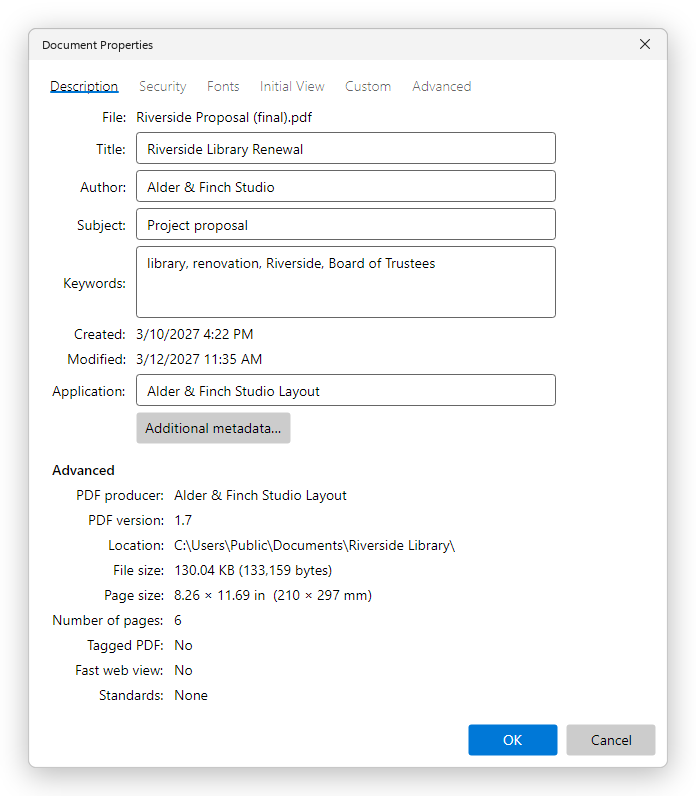
You can change:
- Title: the document's title. PDF readers can show it in place of the file name (see Show on the Initial View tab), and screen readers read it.
- Author: who wrote it.
- Subject: what it is about.
- Keywords: words that help find it, separated by commas.
- Application: the program the original document was made in, for example a word processor.
The rest describes the file and cannot be changed here:
- File and Location: the file's name and its folder.
- Created and Modified: when the document was made and last changed, as the document records them. Saving sets Modified to the time you save.
- PDF producer: the program that wrote the PDF.
- PDF version, File size and Number of pages. With unsaved changes, the size is that of the document as it is now.
- Page size: the size of the first page, in inches and millimeters.
- Tagged PDF: whether the document has the tags screen readers use. See Accessibility.
- Fast web view: whether the file is arranged to show its first page in a web browser before it has all downloaded. See Reduce the file size.
- Standards: the standards the document says it meets, such as PDF/A-2b or PDF/UA-1. See PDF standards.
Additional metadata shows the document's XMP metadata: the properties it holds, and the source text under XMP source. A document without it says This document has no XMP metadata.
Security
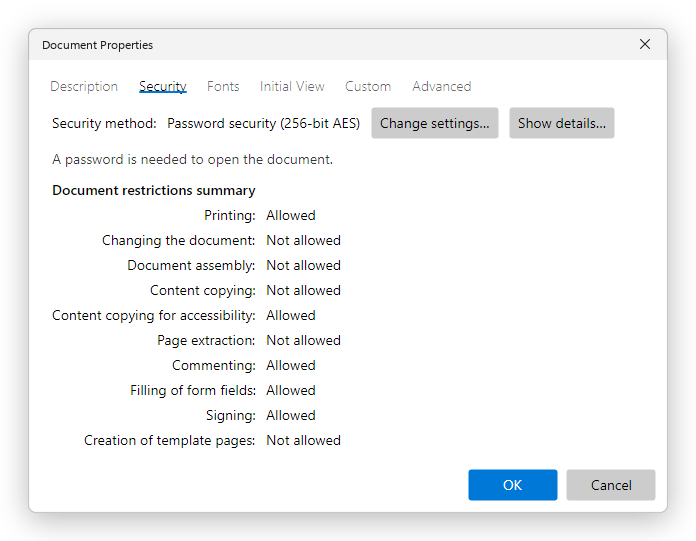
Security method says how the document is protected: No security, password security, or certificate security with the number of recipients. With a password to open the document, the tab says so. Document restrictions summary lists what the document allows, such as Printing, Changing the document and Content copying: Allowed, Not allowed, or for printing Low resolution.
- Show details shows the encryption, whether a password is needed to open the document, and whether anything is restricted.
- Change settings protects the document with a password. On a document that has a password already, it asks whether to change the protection (Password) or take it off (Remove security).
See Protect a PDF with a password and Certificate security.
Adding, changing and removing a password needs Pro. Seeing the security of a document is free.
Fonts
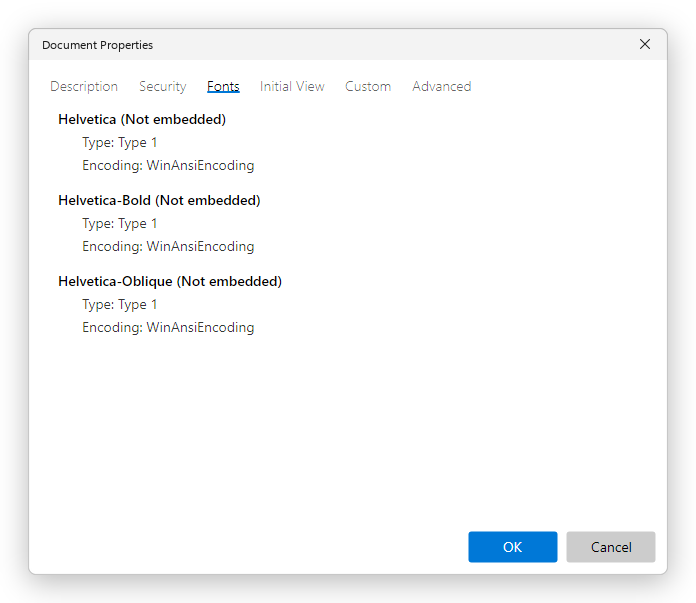
Each font the pages use, with:
- whether it is Embedded in the file, Embedded subset (only the letters the document uses), or Not embedded. A font that is not embedded is replaced with a similar one on computers that do not have it, so the text can look different there.
- Type and Encoding: how the font is stored in the file.
A document whose pages have no text says This document has no text. A scanned document has none until its text is recognized: see Recognize text.
Initial View
How the document opens: in this editor and in other PDF readers.
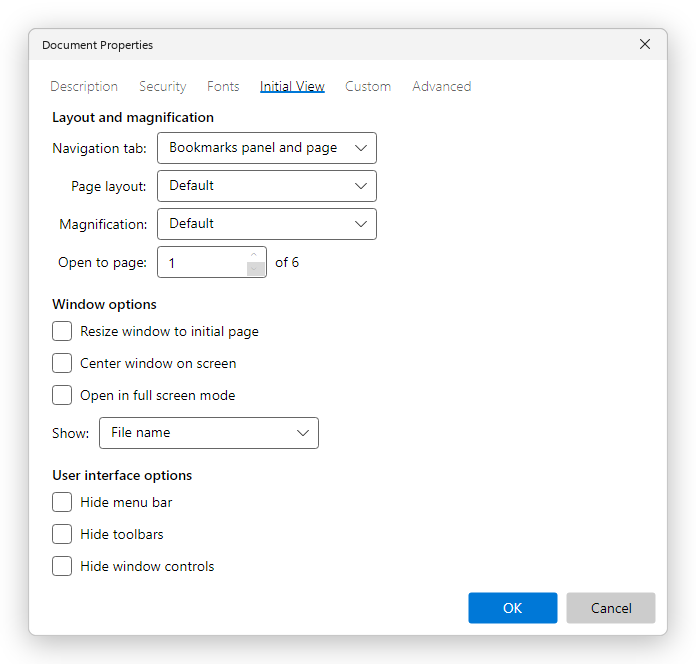
Layout and magnification:
- Navigation tab: the panel that opens with the document: Page only (none), Bookmarks panel and page, Pages panel and page, Attachments panel and page or Layers panel and page.
- Page layout: one page or two side by side, scrolling or not. Default leaves it to the reader.
- Magnification: Fit page, Fit width, Fit height, Fit visible, Actual size, or a zoom from 25% to 400%. Default leaves it to the reader.
- Open to page: the page the document opens at.
Window options:
- Resize window to initial page and Center window on screen: for readers that open each document in a window of its own.
- Open in full screen mode: only the pages, without the reader's window around them; for a presentation, for example.
- Show: what the window's title shows, the File name or the Document title (the Title on the Description tab).
User interface options: Hide menu bar, Hide toolbars and Hide window controls, for the readers that have them.
The editor opens a document as these settings say the first time you open it: at its page and zoom, with the panel the Navigation tab names (Bookmarks, Pages, Attachments or Layers), and in full screen, and its window's title shows the document's title when Show says so. A document you opened before opens where you left it, unless you clear Restore last view settings when reopening documents in Preferences. The Page layout is followed every time: the document is shown in it while its tab is in front, and the other documents keep the page display you chose on the View tab. The window options (resize and center) are kept in the document for the readers that open each document in a window of its own: the editor shows all documents as tabs of one window. The other settings are kept in the document for the PDF readers that use them.
Custom
Properties of your own, such as a project number or a department, each with a name and a value.
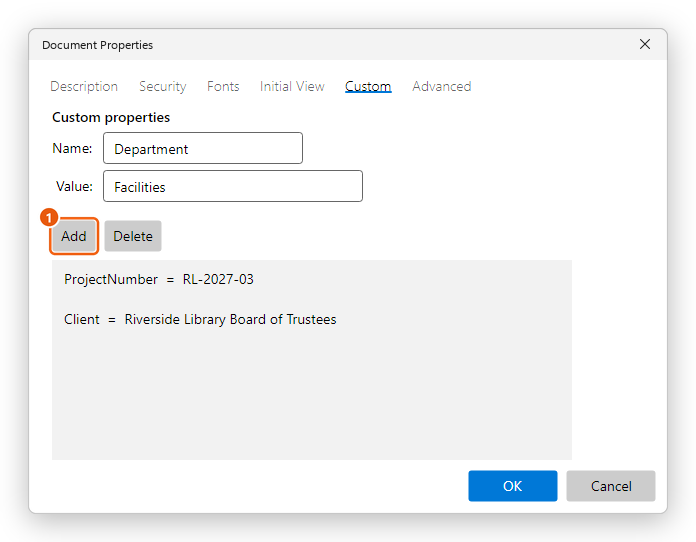
- To add one, type its Name and Value, and click Add. A name cannot have spaces or the characters ( ) < > [ ] / % #.
- To change one, click it in the list, change its Value, and click Add: it takes the place of the property with that name.
- To remove one, click it in the list, and click Delete.
Advanced
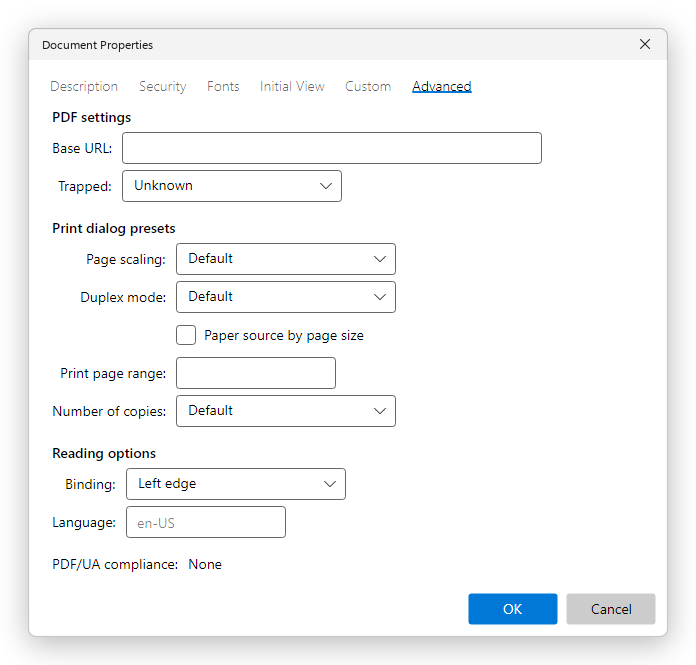
PDF settings:
- Base URL: the web address that the document's relative web links start from.
- Trapped: whether the document has been prepared for commercial printing with trapping (Yes, No or Unknown). Printers' software reads it.
Print dialog presets: what a reader's Print dialog starts with for this document: Page scaling (None prints at actual size), Duplex mode (Simplex, Duplex flip short edge or Duplex flip long edge), Paper source by page size, Print page range (for example 1-3, 5) and Number of copies. The editor's Print dialog starts with them too, except the paper source.
Reading options:
- Binding: Left edge for languages read from left to right, Right edge for those read from right to left, such as Arabic or Hebrew. Readers that follow it show two pages side by side in that order.
- Language: the document's language, as a code such as en-US or de. Screen readers use it to pronounce the text, and spell checking uses it. See Accessibility.
PDF/UA compliance says whether the document says it meets PDF/UA, the standard for accessible PDFs.