Stamps
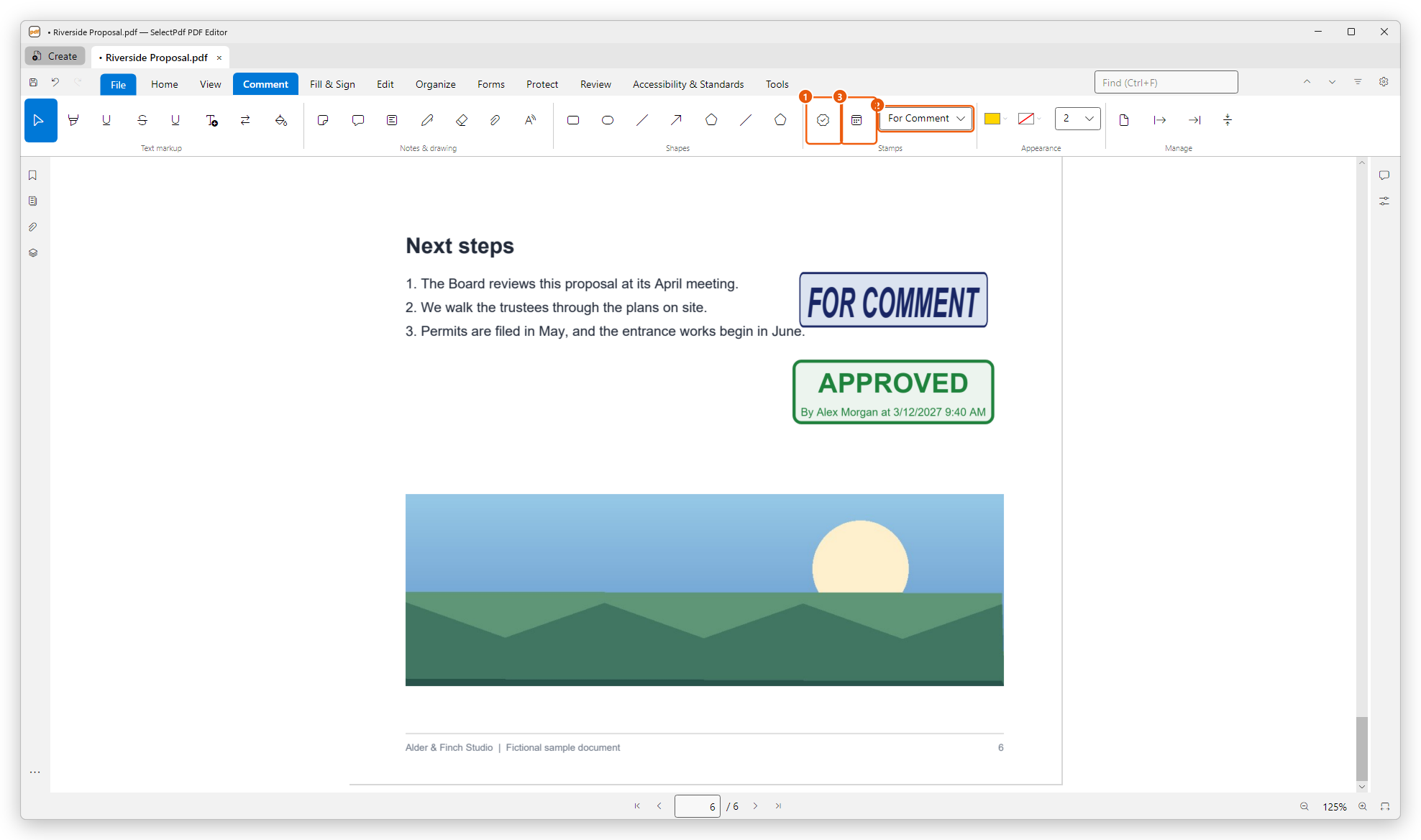
Stamp a PDF as Approved, Draft, Confidential or For Comment, or with a dynamic stamp that shows your name and the date and time; move and resize stamps.
A stamp is a comment that looks like a rubber stamp on paper: Approved, Draft, Confidential... It tells at a glance where a document stands. The stamps are in the Stamps group of the Comment tab.
- Stamp places the stamp chosen in the list.
- The list of stamps.
- Dynamic stamp places a stamp with your name and the date and time.
The buttons of the Comment tab show only their icons: point at a button to see its name. In a narrower window, the Stamps group folds into one button: click it to open the group.
Place a stamp
- On the Comment tab, choose a stamp in the list of the Stamps group.
- Click Stamp.
- Click the page where the stamp goes. The stamp is centred on the place you click.
- Click again to place more stamps, or press Esc when you are done.
The list has 18 stamps: Approved, As Is, Confidential, Departmental, Draft, Experimental, Expired, Final, For Comment, For Public Release, Not Approved, Not For Public Release, Sold, Top Secret, Completed, Void, Information Only and Preliminary Results. Each stamp is drawn into the document, so other PDF readers show it as it looks here.
Place a dynamic stamp
A dynamic stamp shows, under its title, who placed it and when: for example By Alex Morgan at 3/12/2027 9:40 AM.
- Click Dynamic stamp.
- Choose the stamp in the menu: Approved, Reviewed, Received, Revised, Confidential or Rejected.
- Click the page where it goes.
The name is the author of your comments (see Your name as the author), and the date and time are your computer's at the moment you place the stamp, written the way your region writes them. They are drawn into the stamp then, and stay as they are: the stamp is a record of when it was placed. After one stamp, the tool goes back to Select; click Dynamic stamp again for another one.
Set your name before you place dynamic stamps: type it in the box at the top of the Comments panel, or in Preferences > Identity.
Move, resize or delete a stamp
Click the stamp with Select to select it. A dashed frame shows around it, with a handle at each corner.
- Move it: drag it.
- Resize it: drag a corner handle.
- Delete it: press Delete.
In the Properties panel (the Properties icon on the right side of the window) you can make it more or less transparent with Opacity, and change its Subject and Author. The Comments panel lists it as a Stamp, where you can reply to it and set its status like any comment. See Manage comments.
Your signature or initials
To place a picture of your handwritten signature or your initials, use Fill & Sign: see Sign with your signature. The signature is placed the same way as a stamp, and moves and resizes the same way.
Stamps and dynamic stamps are free.
For the other comment tools, see Comment on a PDF and Drawings and shapes.